MCP Server 1.0 for Odoo : Product Documentation (v16 & v17)
The Model Context Protocol (MCP) lets AI assistants such as Claude, Cursor, VS Code and Windsurf connect securely to Odoo and act on your data in natural language.
This guide walks an administrator through configuring the much. MCP Server module and connecting an AI assistant, then explains how to use it day to day — asking questions, managing records, monitoring activity, and understanding exactly how MCP maps to Odoo operations.
ℹ️ Info
Availabilities Odoo.sh, Odoo On Premise Odoo Versions v16,v17 Components Odoo module mcp_server + mcp-server-odoo client (runs on the user's computer) Companion example Claude Desktop (any MCP-compatible client works the same way)
Configuration
This section sets up the module on the Odoo side and connects an AI assistant. Complete the steps in order.
Installation pre-requisites
Before you begin, make sure you have:
- Odoo 16.0 -> 17.0 (Odoo.sh or On Premise) with administrator access.
- The defusedxml Python package available on the Odoo server (used to harden XML-RPC parsing).
- An account you can generate an API key for.
- A local computer running the AI assistant (e.g. Claude Desktop) where the mcp-server-odoo client and UV will be installed.
- HTTPS on your Odoo instance (strongly recommended for production).
Install the MCP Server module
- Copy the mcp_server module into your Odoo addons path (or install it from the App Store).
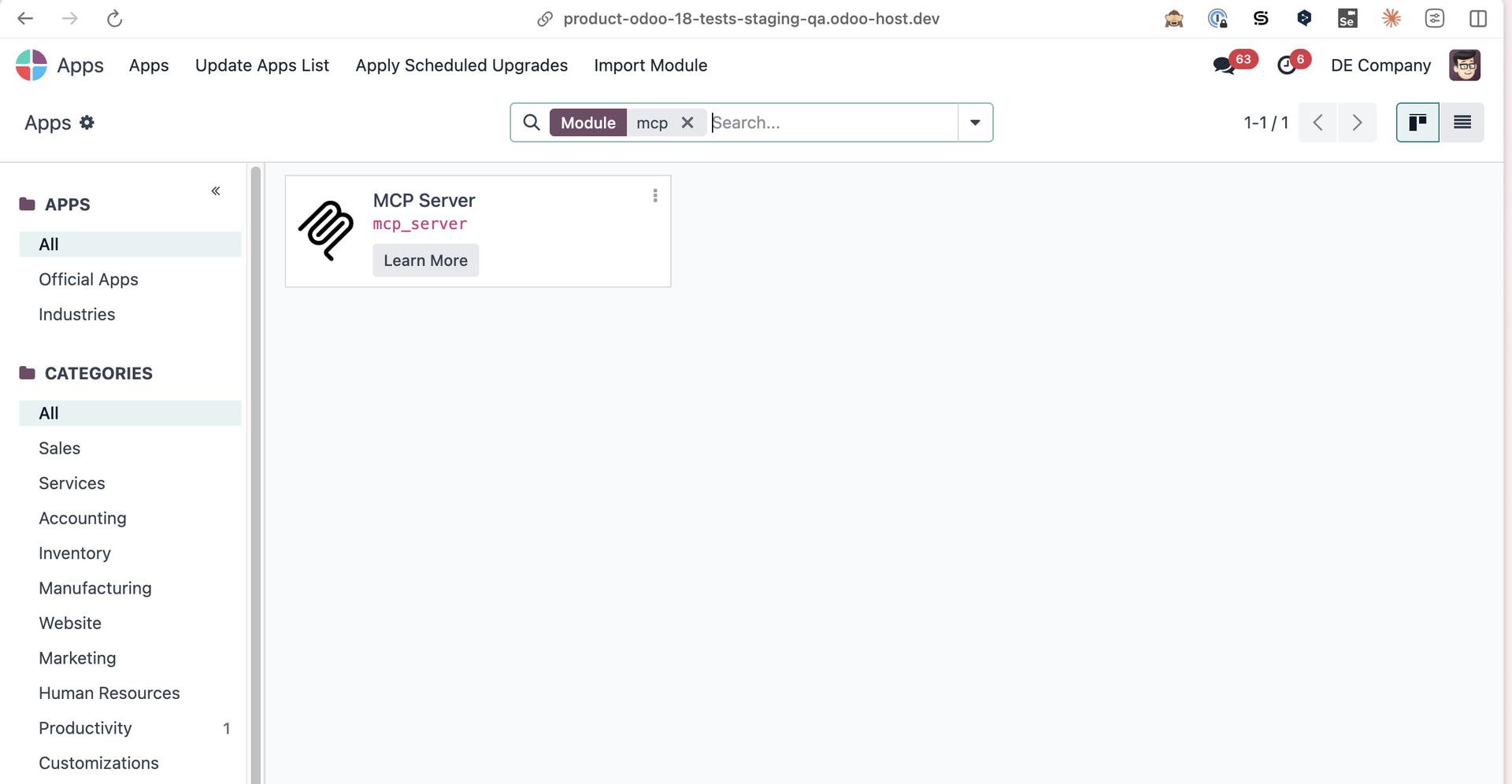
- In Odoo, go to Apps ▸ Update Apps List.
- Search for MCP Server and click Install.
Assign the security groups under Settings ▸ Users & Companies ▸ Users:
- MCP Administrator — can configure MCP and manage enabled models (Odoo Settings admins receive this automatically).
- MCP User — can access MCP-enabled models per the configured permissions.
Enable MCP and configure global settings
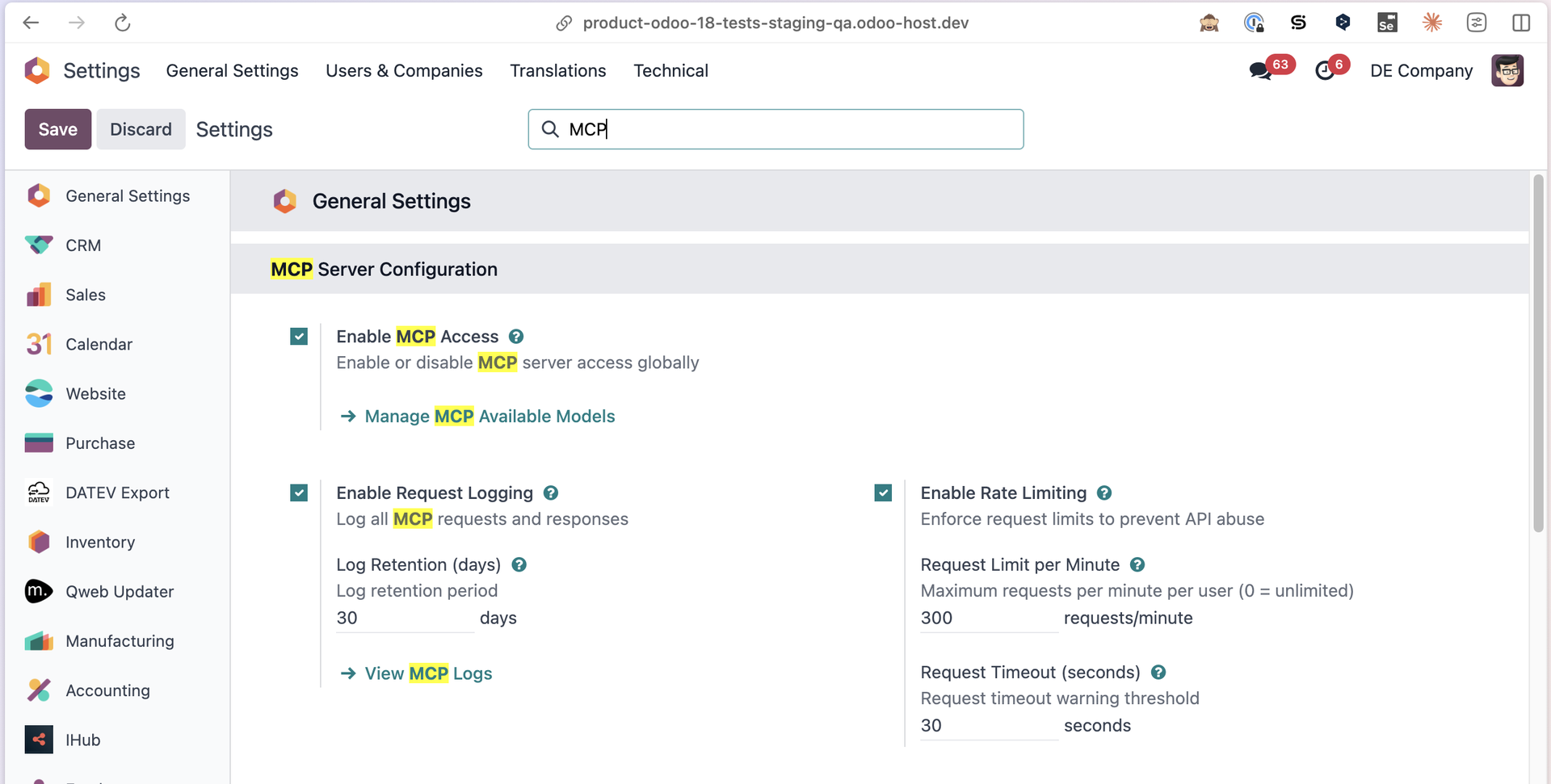
- Go to Settings ▸ MCP Server.
- Turn on Enable MCP Access. This is the master switch — while it is off, every MCP endpoint (REST and XML-RPC) returns an error and no data is reachable.
Configure the safeguards:
- Enable Request Logging (on by default) and a Log Retention (days) period (default 30; 0 = keep forever).
- Enable Rate Limiting and a Request Limit per Minute (default 300; 0 = unlimited).
- Request Timeout (seconds) — informational for HTTP endpoints (see the note below).
⚠️ Note on Request Timeout For HTTP endpoints this value is informational only — Odoo serves web requests in worker threads where the signal-based timeout cannot run. Enforce real request timeouts at the web-server layer (nginx/Apache) or via Odoo worker settings.
Enable models and permissions
This is the core safety step: you decide which models AI assistants can reach, and which operations are allowed on each.
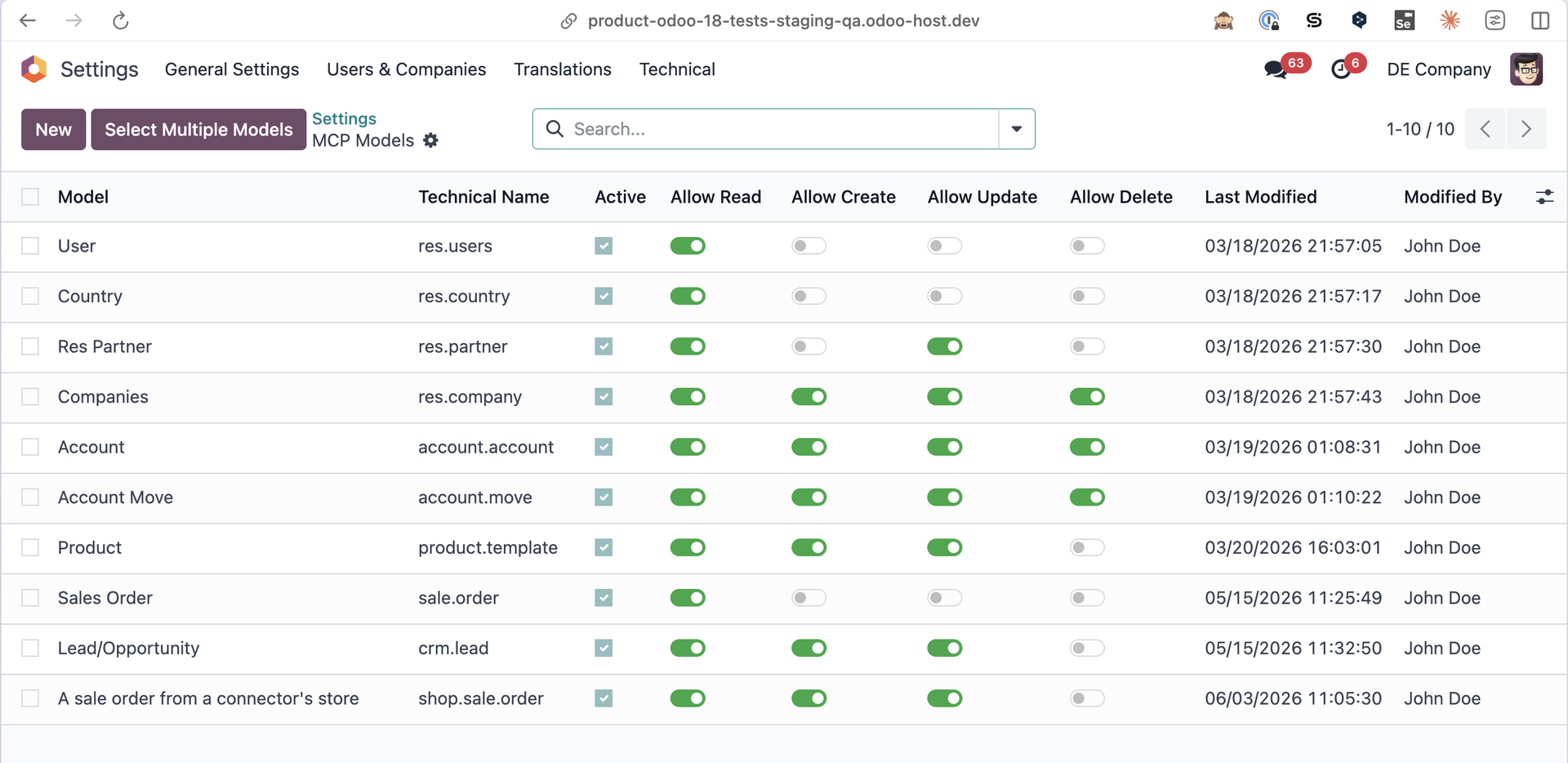
- Click Manage MCP Available Models on the settings page, or go to Settings ▸ Technical ▸ MCP ▸ MCP Available Models.
Click New and fill in:
- Model: the Odoo model to expose (e.g. Contact / res.partner).
- Active: whether this entry is in effect.
- Allow Read (on by default), Allow Create, Allow Update, Allow Delete — tick only what you need.
- Notes: optional internal notes.
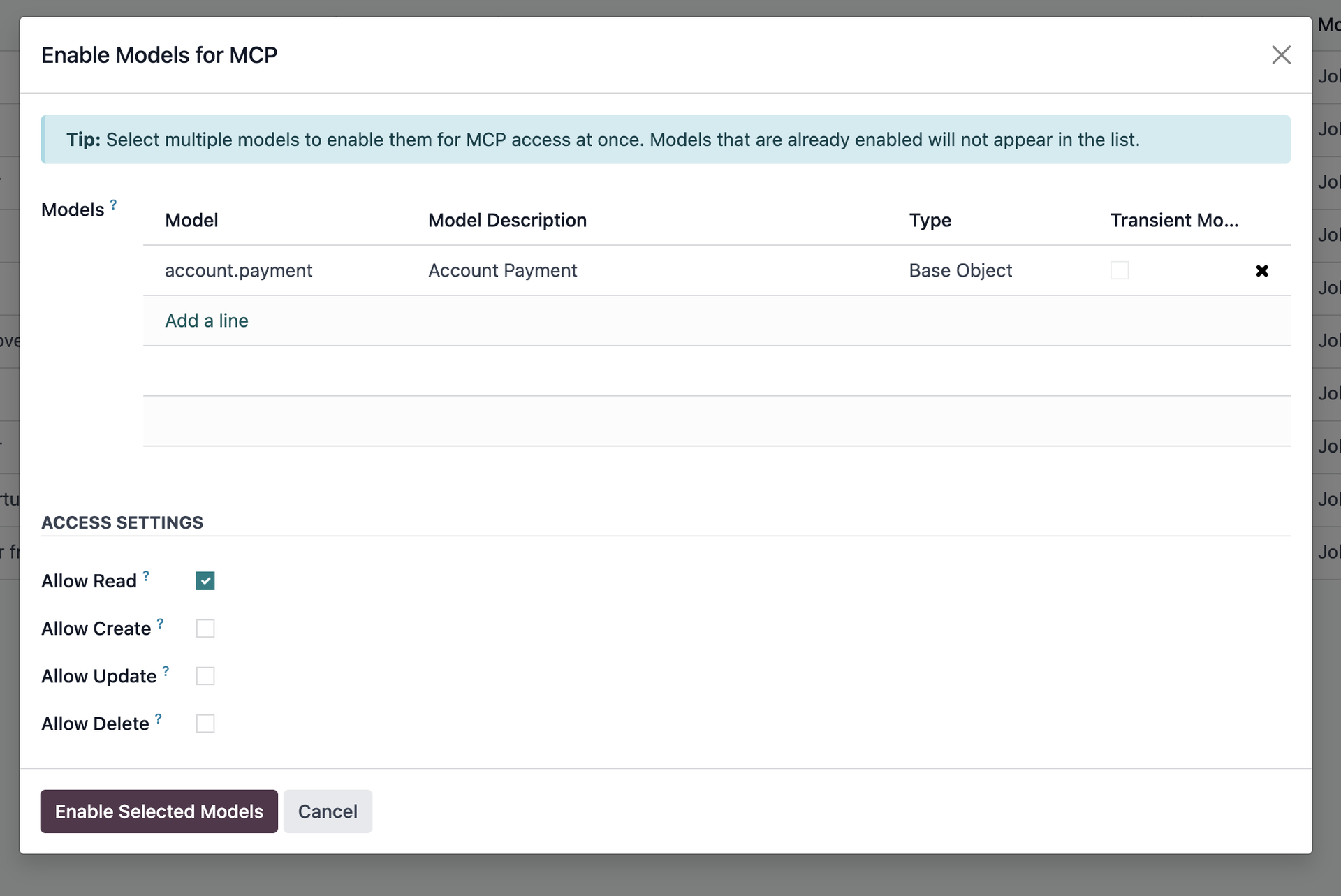
- To enable several models at once, click Select Multiple Models, choose the models, set the operation toggles, and click Enable Selected Models. Already-enabled, transient and internal (ir.*, base_*) models are automatically excluded from the list.
⚠️ Least privilege A model that is not listed is completely invisible to MCP. New entries default to read only — opt into create/update/delete deliberately, model by model
Generate an API key
Each AI client authenticates as a real Odoo user using a per-user API key.
- Go to User ▸ My Preferences ▸ Security.
- Click New API Key, provide a description, and generate it.
- Save the key immediately — it is shown only once.
Test and validate the connection
From any terminal, confirm the server responds and the key works:
Health check (no key required):
curl https://your-odoo.com/mcp/health
Validate the API key:
curl -X GET https://your-odoo.com/mcp/auth/validate -H "X-API-Key: <your-key>"
List enabled models:
curl https://your-odoo.com/mcp/models -H "X-API-Key: <your-key>"
A successful health check returns {"success": true, ...}. If MCP is globally disabled you will get 503 / E503.
Set up the AI assistant with Claude Desktop
The MCP server runs on your local computer (where Claude Desktop is installed), not on the Odoo server. The steps below are for Claude Desktop; any MCP-compatible client is configured in a similar way.
Install UV on your local computer:
macOS:
curl -LsSf https://astral.sh/uv/install.sh | sh
Windows:
powershell -c "irm https://astral.sh/uv/install.ps1 | iex"
Find the uvx path — you will need the full path in the config:
which uvx
It usually returns something like /Users/yourusername/.local/bin/uvx.
- Restart your terminal.
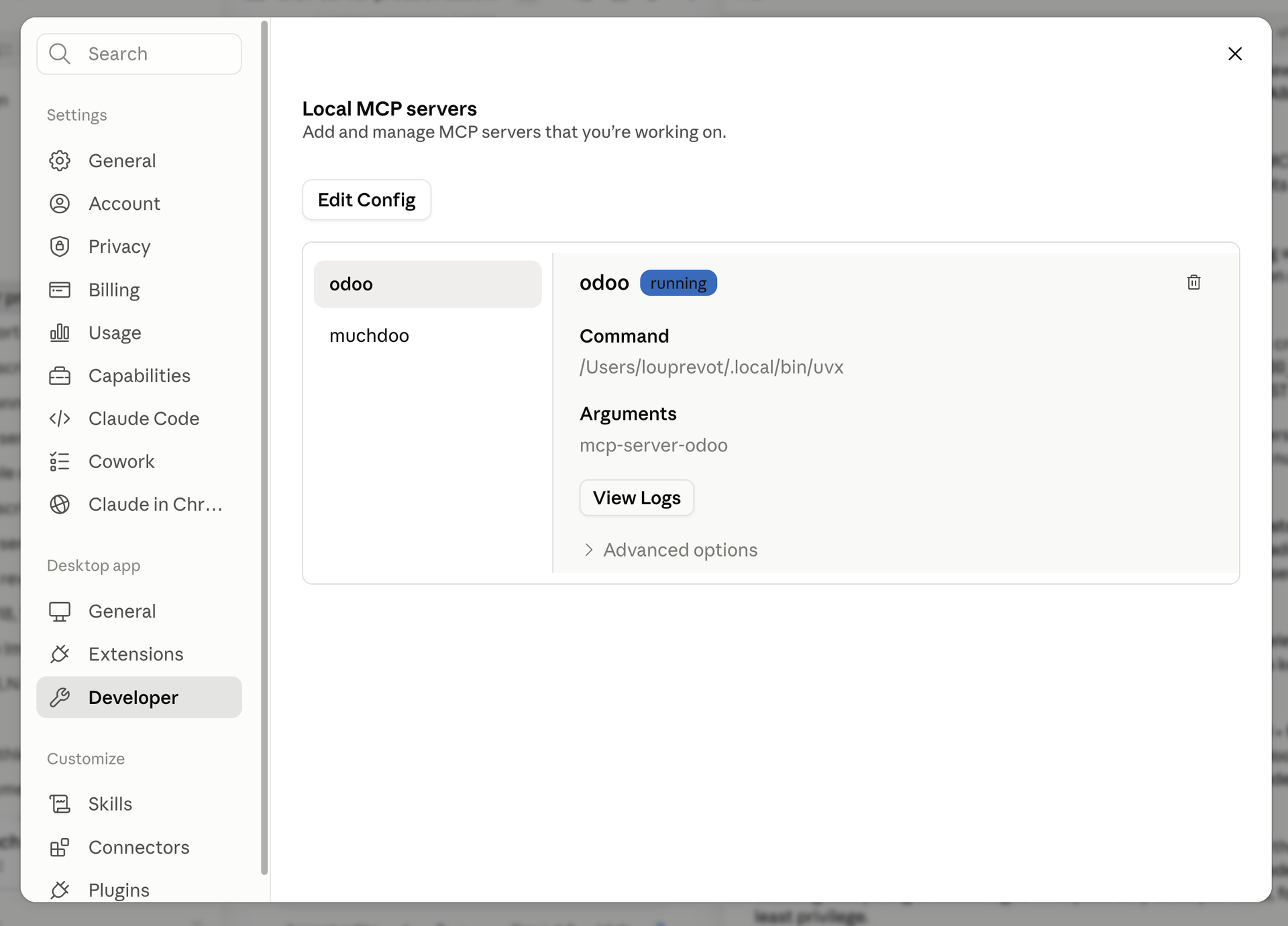
- Open Claude Desktop and go to User ▸ Settings ▸ Developer.
- Click Edit Config to open claude_desktop_config.json.
Add (or merge) the odoo server into mcpServers, filling in your own values:
{
   "mcpServers":{
      "odoo":{
         "command":"YOUR_UVX_PATH",
         "args":[
            "mcp-server-odoo"
         ],
         "env":{
            "ODOO_URL":"YOUR_ODOO_URL",
            "ODOO_DB":"YOUR_ODOO_DB",
            "ODOO_USER":"YOUR_ODOO_USER_EMAIL",
            "ODOO_API_KEY":"YOUR_ODOO_API_KEY"
         }
      }
   }
}
Values to fill:
- command: the full uvx path from step 2 (e.g. /Users/yourusername/.local/bin/uvx).
- ODOO_URL: your Odoo instance URL.
- ODOO_DB: your database name (optional — auto-detected if omitted).
- ODOO_USER: your Odoo login email.
- ODOO_API_KEY: the key generated earlier.
- Save the file and restart Claude Desktop.
Go back to Settings ▸ Developer:
- If the status is Running, setup is successful — you can start asking Claude about your Odoo data.
- If the status is Failed, click View Logs, copy the text, and hand it to Claude for troubleshooting support.
💡 Client environment variables
Variable Required Description ODOO_URL Yes Your Odoo instance URL. ODOO_API_KEY Yes* API key (recommended auth method). ODOO_USER Yes* Login email (with ODOO_PASSWORD, if not using a key). ODOO_PASSWORD Yes* Password (if not using a key). ODOO_DB No Database name (auto-detected if omitted). * Use either ODOO_API_KEY, or both ODOO_USER and ODOO_PASSWORD.
For remote/web clients, add "--transport", "streamable-http", "--port", "8000" to args and connect the client to http://localhost:8000/mcp/.
Verify the scheduled action
- Go to Settings ▸ Technical ▸ Automation ▸ Scheduled Actions.
- Confirm MCP Log Cleanup exists and is active. It runs once per day and deletes log entries older than the Log Retention (days) setting (nothing is deleted if retention is 0).
You are now ready to query and manage your Odoo data through your AI assistant, within the permissions you configured!
Usage
In this section you will learn how to use the integration in your daily workflows.
Asking the assistant : retrieving data
Once the assistant shows Running, you can ask about any model you enabled for reading. The assistant translates natural language into permitted Odoo queries (search, read, count, group). Examples:
- "Show me all leads from Spain that haven't been contacted in 30 days."
- "Which products are low in stock right now?"
- "What were our top-selling items last month?"
- "List unpaid customer invoices over €1,000."
Behind the scenes the assistant may call read-family methods (search_read, read, read_group, name_search, fields_get). Each call is checked against the model's Allow Read permission before Odoo's own access rights apply.
📷 Screenshot: a Claude conversation returning Odoo CRM data.
Asking the assistant : managing data
Where you enabled create/update/delete on a model, the assistant can also change data:
- Create — "Create a new contact for Acme GmbH with this email." (requires Allow Create)
- Update — "Set the delivery date on order S00123 to next Friday." (requires Allow Update)
- Post a message — "Add a note to this customer that they requested a callback." (treated as an update)
- Delete / archive — "Delete the test contacts I created this morning." (requires Allow Delete)
⚠️ If an operation is not enabled for the model, the assistant receives a Permission Denied (403 / E403) and the attempt is recorded in the MCP Logs. The assistant can never exceed what the underlying Odoo user is allowed to do.
Managing model access day to day
| Task | How to perform it |
|---|---|
| Turn MCP access on/off globally | Settings ▸ MCP Server ▸ Enable MCP Access (master switch). |
| Expose a new model | Settings ▸ Technical ▸ MCP ▸ MCP Available Models ▸ New, pick the model, set operations. |
| Expose several models at once | Select Multiple Models wizard → set operations → Enable Selected Models. |
| Change what an assistant may do to a model | Edit the model's row and toggle Allow Read / Create / Update / Delete. |
| Temporarily disable a model | Untick Active on its row (keeps the configuration). |
| Grant a person access | Add them to the MCP User group and create an API key on their user record. |
| Revoke access | Delete the API key, remove the group, or deactivate the model. |
| Tune abuse protection | Adjust Enable Rate Limiting and Request Limit per Minute. |
| Manage log storage | Adjust Log Retention (days); the daily cleanup job enforces it. |
Monitoring and Logs
The module provides comprehensive logging to monitor activity and troubleshoot issues.
- Navigate to Settings ▸ Technical ▸ MCP ▸ MCP Logs (or click View MCP Logs on the settings page). The list is read-only and defaults to today.
Use the built-in filters:
- Errors — authentication failures, errors, rate-limit hits and permission denials (the most common issues to check).
- Authentication — successful and failed logins.
- Group by Event Type, User or Date.
- Click a log entry to see the full detail, including the request/response data exchanged (large fields are truncated at 10,000 characters).
Event types you will see:
| Event Type | When it fires |
|---|---|
| Authentication Success | A valid API key or session authenticates. |
| Authentication Failure | Invalid/missing key, or an inactive/unknown user. |
| Model Access | A permitted read/create/write/unlink or access check runs. |
| Resource Retrieval | Reserved for resource-retrieval events. |
| Write Operation | Reserved for write-operation events. |
| Error | An endpoint raised an error (carries an error code). |
| Rate Limit Exceeded | A request was blocked by rate limiting. |
| Permission Denied | Access blocked because the model or operation is not enabled. |
📷 Screenshot: the MCP Logs list filtered to "Errors".
Reference : extended fields
mcp.enabled.model — MCP Enabled Model (user-editable)
| Field | Type | Editable | Purpose |
|---|---|---|---|
| Model (model_id) | Many2one → ir.model | Yes | The Odoo model exposed to MCP. Unique per record. |
| Technical Name (model_name) | Char (related, stored) | Read-only | Technical name (e.g. res.partner). |
| Active (active) | Boolean (default True) | Yes | Whether this entry is in effect. |
| Allow Read (allow_read) | Boolean (default True) | Yes | Permit read/search operations. |
| Allow Create (allow_create) | Boolean (default False) | Yes | Permit record creation. |
| Allow Update (allow_write) | Boolean (default False) | Yes | Permit updates. |
| Allow Delete (allow_unlink) | Boolean (default False) | Yes | Permit deletions. |
| Notes (notes) | Text | Yes | Internal notes. |
mcp.log — MCP Server Activity Log (read-only)
| Field | Type | Purpose |
|---|---|---|
| Event Type (event_type) | Selection | Category of event (see table above). |
| User (user_id) | Many2one → res.users | User associated with the event. |
| API Key Used (api_key_used) | Boolean | Whether an API key (vs session) was used. |
| IP Address (ip_address) | Char | Client IP (IPv4/IPv6). |
| Endpoint (endpoint) | Char | Endpoint/path called. |
| HTTP Method (http_method) | Char | HTTP method. |
| Model (model_name) | Char | Target model. |
| Operation (operation) | Char | Operation or method. |
| Record IDs (record_ids) | Char | Affected record IDs (comma-separated). |
| Request Data (request_data) | Text | Request payload (truncated at 10,000 chars). |
| Response Data (response_data) | Text | Response payload (truncated at 10,000 chars). |
| Error Message (error_message) | Text | Error detail (truncated at 10,000 chars). |
| Error Code (error_code) | Char | Error code (e.g. E403). |
| Duration (duration_ms) | Integer | Processing time in milliseconds. |
| Session ID (session_id) | Char | Session identifier, when available. |
| User Agent (user_agent) | Text | Client user-agent (truncated at 10,000 chars). |
Reference : configuration parameters
Each MCP setting on the Settings page is stored as an Odoo system parameter (ir.config_parameter).
| Settings Field | System Parameter | Default | Notes |
|---|---|---|---|
| Enable MCP Access | mcp_server.enabled | False | Master switch; cached ~5 min in-process. |
| Request Limit per Minute | mcp_server.request_limit | 300 | 0 = unlimited; non-zero floored at 10. |
| Request Timeout (seconds) | mcp_server.request_timeout | 30 | Informational for HTTP endpoints. |
| Enable Request Logging | mcp_server.enable_logging | True | Controls whether mcp.log entries are written. |
| Enable Rate Limiting | mcp_server.enable_rate_limiting | False | Controls whether the request limit is enforced. |
| Log Retention (days) | mcp_server.log_retention_days | 30 | 0 = keep forever; enforced by the cleanup cron. |
Reference : method and data mapping
On /mcp/xmlrpc/object, each XML-RPC method the assistant calls is mapped to one of four operations and checked against the model's permissions. Methods not listed here are denied by default, and any method beginning with _ (private) is always denied.
➡️ XML-RPC method → MCP operation
| Operation (permission) | Mapped methods |
|---|---|
| Read (allow_read) | read, search, search_read, search_count, name_search, fields_get, export_data, default_get, name_get, get_metadata, get_formview_id, get_formview_action, read_group, formatted_read_group |
| Create (allow_create) | create, copy, name_create |
| Update (allow_write) | write, toggle_active, action_archive, action_unarchive, message_post |
| Delete (allow_unlink) | unlink, action_delete, button_immediate_uninstall |
➡️ API endpoints
REST (JSON, X-API-Key header except health):
| Endpoint | Method | Auth | Description |
|---|---|---|---|
| /mcp/health | GET | None | Server status + MCP version. 503 if globally disabled. |
| /mcp/system/info | GET | API key | DB name, Odoo version, language, timezone, enabled-model count, MCP version. |
| /mcp/auth/validate | GET | API key | Confirms validity; returns user ID and auth method. |
| /mcp/models | GET | API key | Lists MCP-enabled models. |
| /mcp/models/<model>/access | GET | API key | Whether a model is enabled and its allowed operations. 404 if unknown, 403 if not enabled. |
XML-RPC (used by the client for record operations):
| Endpoint | Description |
|---|---|
| /mcp/xmlrpc/common | Authentication services. |
| /mcp/xmlrpc/db | Database services. |
| /mcp/xmlrpc/object | Model operations, guarded by MCP access control (only execute_kw). |
Reference : response and error codes
REST responses use a consistent envelope: {"success", "data"/"error", "meta"} with an ISO timestamp. Errors carry an HTTP status and an internal code.
| HTTP | Code | Meaning |
|---|---|---|
| 400 | E400 | Bad request (invalid model name, unsupported XML-RPC method). |
| 401 | E401 | Authentication required or failed. |
| 403 | E403 | Forbidden — model/operation not enabled for MCP. |
| 404 | E404 | Model not found in the Odoo instance. |
| 408 | E408 | Request timeout (where applicable). |
| 429 | E429 | Rate limit exceeded. |
| 500 | E500 | Internal server error. |
| 503 | E503 | MCP is globally disabled. |
Dependencies
| Dependency | Type | Required By |
|---|---|---|
| base | Odoo module | Core framework, users, groups, ir.model, API keys. |
| base_setup | Odoo module | Settings integration (the MCP configuration block). |
| Odoo module | Messaging/chatter infrastructure and related model methods. | |
| rpc | Odoo module | XML-RPC dispatch and Odoo's date-aware marshaller reused by the MCP object endpoint. |
| defusedxml | Python package | Hardening XML-RPC parsing against XML attacks. |
| mcp-server-odoo | External client | Runs on the user's computer to bridge the assistant to Odoo (installed via uvx). |
| UV (uvx) | External tool | Runs the client package on the user's machine. |
FAQ
Do I need anything besides this Odoo module? Yes. This module is only the server-side half. Each user also needs the mcp-server-odoo client on their computer (run via uvx), plus UV installed. The client is configured in the AI assistant, not in Odoo.
In Claude Desktop the status is "Failed". What do I do? Open Settings ▸ Developer ▸ View Logs, copy the text, and give it to Claude for troubleshooting. The most common causes are a wrong uvx path (use the full path from which uvx), an incorrect ODOO_URL, or an invalid API key.
I get spawn uvx ENOENT. UV isn't installed or isn't on the PATH on your computer. Install UV, restart the terminal and the client. On macOS, launching the client from a terminal (open -a "Claude") helps it inherit the PATH. Alternatively put the full uvx path in command.
Nothing works even though I enabled a model. Check the master switch first: Settings ▸ MCP Server ▸ Enable MCP Access must be on. While it's off, every endpoint returns 503 / E503 regardless of per-model settings.
I enabled a model but changes don't take effect immediately. MCP enablement and per-model/operation checks are cached in the server for up to 5 minutes to reduce database load. Wait a few minutes (or restart the workers) and retry.
An action failed with "Access denied" / 403. Either the model isn't in MCP Available Models, the specific operation isn't ticked, or the method isn't in the allowed mapping. Check the model's row and the matching Permission Denied entry in MCP Logs for the exact model and operation.
Read works but the assistant can't create or update. By design, new models are enabled read only. Open the model's row and tick Allow Create / Allow Update / Allow Delete as needed.
Can an assistant do more than the Odoo user is allowed to? No. MCP only narrows access. Every call still passes through Odoo's access rights and record rules for the authenticated user.
Are private/internal methods reachable? No. Any method starting with _ is always denied, and only methods explicitly mapped to an operation are allowed — everything else is denied by default.
Key or password for authentication? API keys are recommended: create one on the user record and set ODOO_API_KEY. Alternatively set both ODOO_USER and ODOO_PASSWORD. A logged-in session cookie also works for the REST endpoints.
Is rate limiting exact? It's a safeguard, not a precise quota. Counters live in each worker process's memory, so the effective ceiling scales with the number of workers. Leave a comfortable margin above expected usage.
Does the Request Timeout setting actually stop long HTTP requests? No — for HTTP it's informational. Odoo serves web requests in worker threads where the signal-based timeout can't run. Enforce real timeouts at the web-server (nginx/Apache) or Odoo worker level.
Why are my logs disappearing? The daily MCP Log Cleanup job deletes entries older than Log Retention (days) (default 30). Set retention to 0 to keep logs indefinitely, or increase the value.
I can't see the MCP menus. The MCP menus (Settings ▸ Technical ▸ MCP) and the settings block are visible only to MCP Administrators (and Odoo Settings admins). Confirm your group membership; developer mode is needed for the full Technical menu.
Can I expose every model at once? You can bulk-enable many via the wizard, but it deliberately hides transient and internal (ir.*, base_*) models, and enabling everything is discouraged — expose only what you need, following least privilege.