📄 Onboarding Guide — Shoovels & Technical Best Practices

Onboarding Guide — Shoovels & Technical Best Practices

This article covers the key concepts every new much. Consulting team member needs to understand: how projects are structured, how Odoo's technical architecture works, how to navigate customer instances and Shoovels, and how to write and manage tickets correctly.

Scope: Covers the three customer journey phases, Odoo modular architecture, environment and instance management, rebuilds, sprint workflow, ticket guidelines, and Shoovels day-to-day operations. Does not cover advanced monitoring (Grafana / Sentry), developer-side code work, or project-specific configurations.

📋 Overview: The 3 Phases of Working with Customers

In the ideal case, a customer goes through all three phases and becomes a long-term client.

PhaseWhat happensYour role
1 — Pre-Project (Solution Design)Requirements gathering, GAP analysis, process consulting. No development at all in this phase. Output: a GAP Excel with all requirements, estimates, and risk ratings.Mainly the Solutions team. You may be asked to join a proof of concept or help gather requirements on site.
2 — ImplementationDetailed design, development, user testing, data migration. Sprint-based. This is where customizations are built if needed.This is your day-to-day. You lead customer meetings, write tickets, run internal QA, and hand over features.
3 — Long-term Success (Support Hub)Customer pays a yearly fee and submits tickets as needed. No dedicated project team — whoever has capacity handles the work.Ticket-based support. You may be assigned support tickets regardless of which project you originally worked on.

Key insight from pre-project: Customers often don't fully know their own processes. The goal is always to fix broken or unclear processes before building Odoo on top of them. An ERP cannot fix a broken process — it will just automate the mess. Process consulting is a core part of the pre-project phase.

📍 Where to Find Your Tools

  • Shoovels — much. Consulting's own hosting platform. All customer databases are managed here. Access via the Shoovels web dashboard; your projects are pinned there.
  • Odoo Project Board (muchdoo) — your internal project view. Navigate to Project → Projects → [Customer Project] in muchdoo to see the full Kanban board with all ticket stages.
  • Asana — the customer-facing ticket view. Synced with Odoo. Customers see a reduced subset of what is in the Odoo ticket.

🧮 How Odoo Is Built

Understanding Odoo's modular structure helps you understand why customizations work the way they do and what happens when you install or uninstall a feature.

  • Apps — high-level products (e.g., Sales, Inventory, Accounting). Odoo has more than 80 apps and over 1,300 modules.
  • Modules — installable units of functionality within an app. Every additional feature is a separate Odoo module. This is how much. Consulting ships customizations: as modules that can be installed and uninstalled independently.
  • Models — the underlying data structures (e.g., a Sales Order is the model sale.order, a product is product.product).

This modular structure has two key practical advantages: features can be rolled out step by step (no risky "big bang" go-live), and if a custom module causes a problem, it can be uninstalled without breaking the core Odoo system.

Each module follows a standardised folder structure in GitHub. You do not need to work with this day-to-day, but it helps to know it exists:

  • models — data structures and business logic (Python)
  • views — UI views and email templates
  • security — access rights and permission rules
  • data — master data (.xml files)
  • tests — automated test cases
  • report — PDF documents and report logic
  • i18n — translation files (.po)
  • wizards — pop-up dialogs for actions

⚙️ How the Instance Setup Works

Every customer project runs across multiple environments, called instances. Each has a specific role. Understanding this is critical — testing in the wrong environment can cause data problems that are extremely difficult to reverse.

The Standard Instance Hierarchy

  1. Feature branches — Developer-only. Non-reachable in a browser. Developers write code here and automated tests run via Jenkins. You never work directly on feature branches.
  2. Staging QA — Internal testing. After a developer finishes a ticket, you install the new module here and test the feature yourself before showing it to the customer.
  3. Staging Release — Customer testing. Once internal QA passes, the code moves here. The customer tests and approves the feature on this instance.
  4. Production — The live system. Only receives code after the customer has approved it in Staging Release. Always running; never used for testing.

When a Customer Develops Themselves

If the customer also writes their own code (less common), a fourth environment is added: a Consolidation System (Staging Integration). Customer code and much. Consulting code are merged and tested there before anything goes to Staging Release or Production.
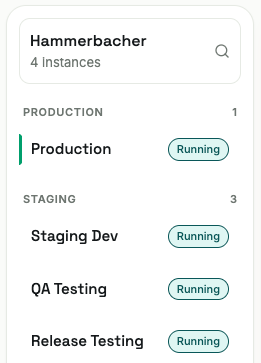
Screenshot: Shoovels project overview showing the list of instances incl. customer development

XRule: We NEVER test on Production. Once you create a sales order, delivery, stock move, or accounting entry on production, it is nearly impossible to remove cleanly. A developer can sometimes help, but expect 2–4 hours of consulting and development work to clean up a single mistake. Be strict about this with customers too — they also do not test on production.

Why We Do Not Cherry-Pick

Odoo modules are sometimes interdependent — a change to replenishment may also touch the routes module or the products module. If you push only one feature to production while leaving dependent modules behind, you can cause cascading errors in production. Always push all approved features together in a coordinated production release. The system is typically down for 2–3 minutes during a push, so coordinate the timing with the customer in advance.

⚙️ How to Perform a Rebuild

A rebuild is a copy of the Production database — including data, installed modules, and configurations — loaded into a staging environment. It does not copy code. Each environment always has its own code. Performing rebuilds is a consultant responsibility, not a developer task.

When to rebuild:

  • After a major production push — to re-align staging with what is currently live
  • After major configuration changes have been pushed to production
  • Not before developing a new feature — you need your existing test data intact to test the new feature
  1. Open Shoovels and navigate to the customer project.
  2. Select the staging instance you want to rebuild (e.g., Staging QA).
  3. Trigger the "Rebuild" action — this creates a job that copies the production database into the staging instance.
  4. Monitor the job in the Jobs tab until it shows Success.
  5. After the rebuild, reinstall any custom modules that were in staging but not yet in production — they will be missing after the rebuild because they were not installed on production at the time of the copy.
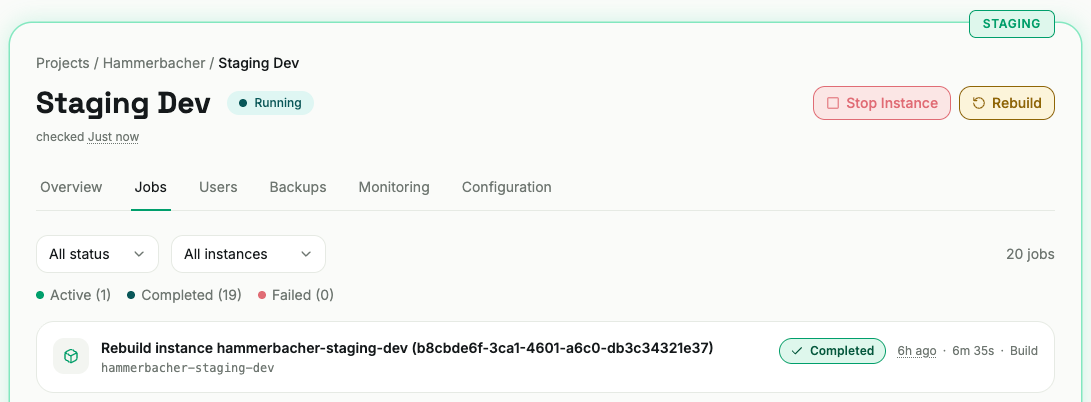
Screenshot: Shoovels Jobs tab showing a rebuild job with "Completed" status and timestamp

Always ask before rebuilding. A rebuild wipes all staging configurations that were not yet pushed to production. If a colleague or the customer is testing something on staging, their test data and configurations will be gone after an unannounced rebuild. Also: document what you configured in staging before triggering a rebuild — once it runs, any configuration that was not pushed to production is lost.

⚙️ How to Use Shoovels

Shoovels is much. Consulting's own hosting platform — similar to Odoo.sh but purpose-built for our workflow. All customer instances are managed here. The following are the operations you will use regularly as a consultant.

Log In as a User

  1. Open the customer project in Shoovels.
  2. Click on the instance you want to access.
  3. Go to the Users tab.
  4. Find the user you want to test as and click "Login as →" — no password is required.

This is essential for access rights testing. To verify that a feature is visible only to the correct user roles (the "least privilege principle"), you need to log in as that specific user. For example, a warehouse employee should not see accounting entries. Log in as a warehouse user and confirm the menus are correctly hidden.
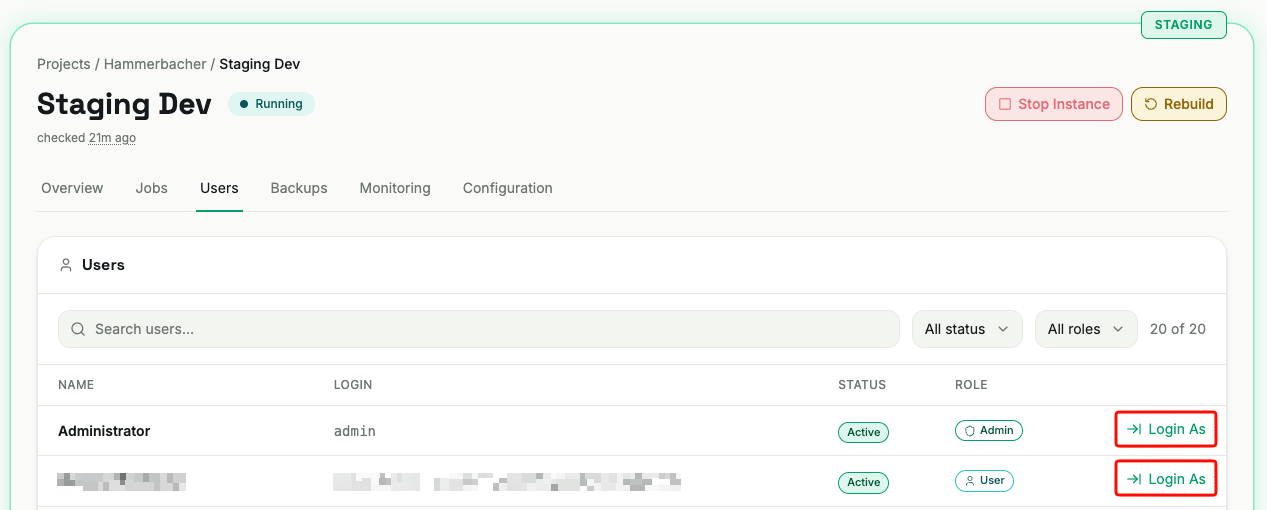
Screenshot: Shoovels Users tab showing a list of users with "Login as →" action buttons

Create a Backup

  1. In the Shoovels instance overview, go to the Backups tab.
  2. Click "Create Backup" to trigger a manual backup immediately.

Backups run automatically every 24 hours at approximately 3:00 a.m. Always create a manual backup before a large production release. If something goes wrong after a push, a backup can be restored to bring the instance back to its previous state.
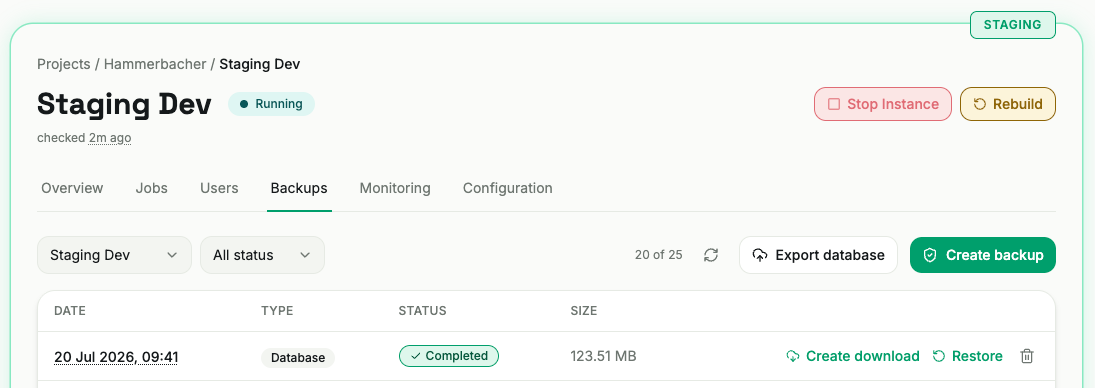
Screenshot: Backups tab showing the list of (automated daily) backups and "Create backup" button

Track Jobs

  1. Open the instance in Shoovels.
  2. Go to the Jobs tab.
  3. Review the list of recent jobs (rebuilds, backups, download link provisioning) and their status (Success / Failed).

If a job fails: for non-critical jobs (e.g., a backup that can be retried), wait a few hours and try again. For a failed rebuild, tag a developer immediately — a broken rebuild is something you do not want to leave unresolved. Never attempt to stop a production instance yourself; leave that to a developer.
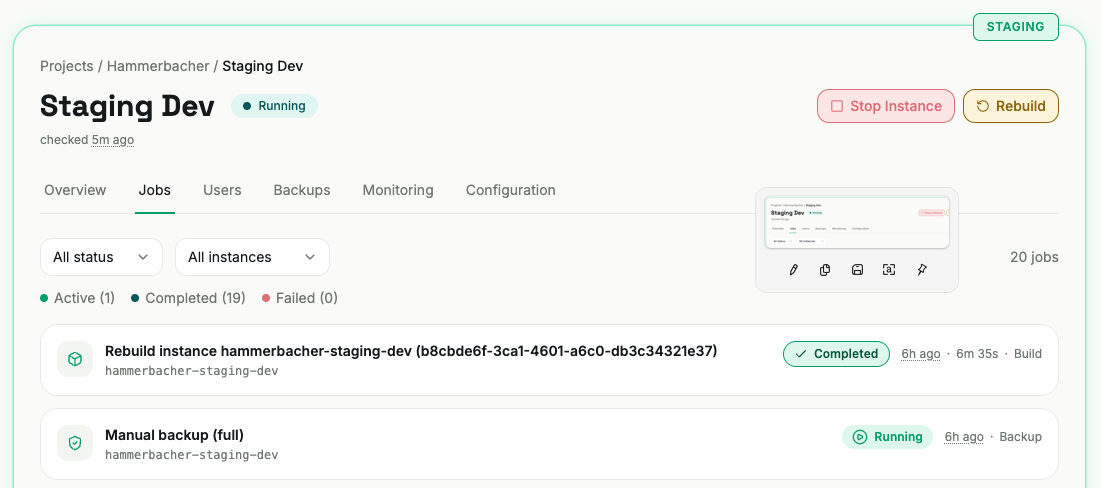
Screenshot: Shoovels Jobs tab showing a list of jobs with success and failed status indicators

Admin user best practice: Always configure things in Odoo as an admin user — restricted access rights will hide menus and frustrate you during configuration work. Keep one admin account for yourself and maintain a separate shared admin account for the customer. Do not share your personal admin account with the customer.

⚙️ How Sprints Work

much. Consulting works in two-week sprints. A sprint is a fixed time period in which a defined set of tasks is completed and handed over to the customer. A task is officially "completed" when it reaches the Customer QA stage — meaning internal testing is done and the customer can begin their review.

Sprint Planning

  1. Write and refine your tickets before the sprint starts. Target: tickets ready by Friday midday before Monday's planning meeting.
  2. Present your tickets in the sprint planning meeting. Mark which are high priority and which can slip if capacity is tight.
  3. Answer developer questions about why a ticket is needed and what the customer context is — even if the developer has never met your customer.
  4. A ticket only enters a sprint if it has an engineering estimation. No estimation = stays in Backlog.
  5. Always assign a deadline to every ticket (typically: end of sprint for development tickets).

Sprint Execution

  1. Developer picks up the ticket and moves it to Doing.
  2. Developer finishes and moves it to Internal QA. You receive a notification.
  3. Install the modules listed by the developer on Staging QA and test the feature thoroughly.
  4. If it works: move the ticket to Customer QA and notify the customer with documentation or a handover meeting.
  5. If it does not work: add a log note with exact steps to reproduce the problem and move the ticket back to the developer.

Sprint Handover

  1. For major changes: schedule a handover meeting. Walk the customer through the feature live, show them where to click, and record the session if useful.
  2. For smaller features: send written documentation via Slack or Teams. Always document — even a short description of what changed and how to use it.
  3. Once the customer approves: move the ticket to To Publish.
  4. Coordinate a production push window with the customer (system is down ~2–3 minutes). After a successful push: move to Done and schedule a rebuild.

Screenshot: Odoo project board (Kanban view) showing all stages from Backlog to Done

🔑 Ticket Stages at a Glance

StageWhat it means & who acts
BacklogLow priority or not yet estimated. Not planned for the current sprint.
DesignConsultant is writing and refining the ticket. Engineering estimation is added, developer is identified, ticket is made ready to pick up.
To DoTicket is ready with estimation and deadline. Waiting to be picked up by a developer in the current sprint.
DoingDeveloper is actively working on it. Do not move tickets here yourself unless it is a consulting-only ticket (no development needed).
Internal QADeveloper is done. Consultant installs the module on Staging QA and tests. This is your QA stage.
Customer QAInternal testing passed. Ticket is handed over to the customer to test on Staging Release. ✅ A sprint task is considered "completed" when it reaches this stage.
To PublishCustomer has approved the feature. Waiting to be included in a coordinated production release. Features accumulate here until a push is scheduled.
DoneFeature is live on production. Ticket is archived over time.

📊 Odoo (Internal) vs. Asana (Customer View)

Both tools are used for tickets, but they serve different audiences. The two are synced — changes to the Asana-visible fields in Odoo appear in Asana automatically (though the sync can occasionally lag).


Odoo (muchdoo)Asana
Who sees itInternal team onlyCustomer-facing (reduced view)
What goes hereFull ticket: context, technical notes, engineering estimation, test cases, log notes, all internal detailsCustomer requirements, Definition of Done, deadlines, assignees, tags — clean and focused
CommunicationLog Note → internal only, customer cannot see. Send Message → customer can see this in Asana.Customer comments in Asana appear in the Odoo ticket chatter automatically.
Use it forWriting technical context, tagging developers, tracking progress internally, detailed bug notesCustomer validation of requirements and DoD. Tag the customer to ask them to confirm requirements before development starts.
Screenshot: Odoo (muchdoo) ticket showing the "Customer Requirements" and "Odoo Description"

🔑 What Goes in Every Ticket

A well-written ticket must be self-sufficient — a developer who has never spoken to your customer and never worked on this project should be able to pick it up and understand exactly what to build and why. Use Claudioo to draft tickets and fill in additional customer context yourself.

Field / SectionPurpose & Notes
Assignee & DeadlineWho is responsible and by when. Development tickets: end of sprint. Configuration-only tasks: next Jour Fixe or end of day if urgent.
TagsAlways add Engineering for dev tickets — developers filter by this tag. Add Bug when the issue was introduced by our own development (typically unbillable). Other tags (Finance, Installation, New Feature, etc.) help with reporting and filtering.
Context / BackgroundA brief intro to the customer and the current situation. Onboards a developer who may have never worked on this project. Explain what the customer does and why this feature matters to them.
Customer RequirementsWhat the customer asked for, in their own words. This section syncs to Asana — tag the customer to validate it before development starts.
Task DescriptionCurrent behavior (how it works now) + what needs to change (what to build). Be specific about the expected output.
Definition of Done (DoD)A checklist of specific test scenarios that must pass for the ticket to be considered complete. ⚠️ Required. The customer uses the DoD in Asana to approve the feature. No DoD = no clear target for developer or customer.
Engineering EstimationHours estimated by the developer. ⚠️ Required before the ticket can enter a sprint. Without this, the ticket stays in Backlog regardless of how urgent it is.
SprintAssign after the engineering estimation is confirmed. Use the "Add to Sprint" button in the ticket header.

Use Claudioo for ticket writing. Claudioo (much. Consulting's AI assistant) explores the codebase, asks the right business questions, and produces context, task description, test cases, and Definition of Done. You typically copy and paste the output and add additional customer context. The result is a self-sufficient ticket that developers can pick up immediately.

🤖 Jobs in Shoovels

The Jobs tab in Shoovels shows all automated and manual operations running on the instance. It covers Shoovels-managed operations (rebuilds, backups, download link provisioning) — not all Odoo-internal scheduled actions (those are monitored separately inside Odoo).

  • Rebuild — triggered by you as a consultant. Monitor it to completion every time.
  • Backup — automatic daily (around 3:00 a.m.) plus manual on demand. Appears here with a success or failed status.
  • Download link provisioning — Shoovels creates a download link for a database export. Used when someone needs to download a copy of the database.

If a job fails repeatedly or it is a rebuild, tag the responsible developer in Slack immediately. For advanced log inspection (detailed error traces, performance monitoring), tools like Sentry and Grafana are available in the Monitoring tab of Shoovels — but these are primarily for technical consultants and developers. As a standard consultant, the Jobs tab is all you need to monitor.

⚠️ Common Pitfalls

  • Testing on Production — Any order, delivery, stock move, or accounting entry created on production is nearly impossible to remove cleanly. You will need a developer and 2–4 hours to fix a single mistake. Always test on staging. Be strict about this with your customers too.
  • Doing a rebuild without asking — An unannounced rebuild wipes all staging configurations and test data not yet pushed to production. A colleague or the customer may have been mid-test. Always coordinate before triggering a rebuild.
  • Not documenting staging configurations before a rebuild — If you configured something in staging but never pushed it to production, it disappears after a rebuild. Write down every staging configuration change so you can re-apply it and then cleanly rebuild.
  • Cherry-picking features into production — Modules can be interdependent. Pushing one feature without others it depends on can cause cascading errors in production that require emergency developer intervention. Always push complete, coordinated releases.
  • Ticket without DoD or engineering estimation — A ticket without a Definition of Done leaves both developer and customer without a clear target. A ticket without an engineering estimation cannot enter a sprint. Both are required before presenting a ticket in sprint planning.
  • Over-customizing — Every customization must be maintained, migrated on version upgrades, and may consume server resources. The more customization, the more complex and fragile the system becomes. Only customize when it creates genuine, specific value for the customer. When in doubt, use Odoo standard and do process consulting instead.
  • Using Send Message for internal notes — In Odoo, Send Message is visible to the customer in Asana. Use Log Note for anything internal, sensitive, or technical. Never write internal assessments of the customer in Send Message.

💡 Tips

  • Always configure in Odoo as an admin user — if you configure as a restricted user, missing menus and access errors will waste your time and frustrate you.
  • Have your sprint tickets ready by Friday midday before Monday's sprint planning — this gives you time to fix gaps and get developer questions answered before the meeting.
  • If a ticket is urgent and cannot wait for the next sprint and the sprint overview shows no more empty capacity, message the technical project lead in Slack: "Hey [name], do we have capacity to pull this into the current sprint? I have a ticket that cannot wait." Do not simply add it to the sprint yourself.
  • After every major production push, schedule a rebuild in Staging QA so your test environments stay aligned with what the customer has live.
  • Go live with 3–4 core modules first. Never try to launch everything at once — phased rollouts reduce risk and make it much easier to troubleshoot when something is not working.
  • If a bug appears after you shipped a new feature, check whether the new code touched the same Odoo models as the broken area. Likely related — and likely unbillable (our development caused it, our fix).
  • You can debug Shoovels issues with Claudioo — paste the error from the Jobs tab or the Sentry Issues tab and ask Claudioo to help diagnose what went wrong in the instance.