Claudioo Best Practices
This article introduces Claudioo, much. Consulting's AI assistant for Odoo projects, and covers the key use cases, security rules, and built-in commands every consultant should know. It documents the onboarding session held on 14 July 2026.
📋 Overview: 4 Core Use Case Areas
| Use Case | When to use | What Claudioo does |
|---|---|---|
| A – Pre-Projects & Demo Prep | Before a prospect demo or upsell presentation | Generates realistic demo data, sets up end-to-end workflows, writes step-by-step presentation scripts |
| B – Ticket Writing | When drafting a development or bug ticket | Explores the codebase first, interviews you for context, produces a self-sufficient ticket with test cases and an effort estimate |
| C – Troubleshooting on Staging | When there is a bug or unexpected behavior on a staging instance | Reads logs, traces the root cause through custom code and Odoo internals, explains the finding and suggests a fix |
| D – Internal Work & Planning | End of month, Jour Fixe prep, meeting follow-up, handovers | Audits timesheets, runs EoM controlling, prepares meeting notes, generates project overviews |
📍 Where to Find It
Claudioo is a web-based tool — no installation needed. Open it in any browser and select your project from the sidebar to get started.
- claudioo.muchconsulting.dev — the main Claudioo interface; start here for all use cases
- Claudioo Docs (Getting Started) — accessible via the documentation icon inside Claudioo; contains setup guides, prompt templates, and FAQs
- #i-claudioo (Slack) — the team channel for setup issues, questions, and ideas for new use cases or improvements
⚠️ Before You Start
Claudioo can be configured with write access to staging environments for demo preparation. This power comes with a non-negotiable rule that every consultant must know before touching any customer environment.
Rule: Never configure Claudioo with write access to a production database — under any circumstances. Reading production logs or asking questions about production behavior is fine. Write access to production is not, even for a small config change or a single demo record. Staging QA only.
🧮 How It Works
Claudioo is built on Claude (Anthropic's AI model) and has simultaneous access to three knowledge sources. Understanding this helps you write better prompts and know when to trust the output.
- muchdoo — much. Consulting's internal Odoo: projects, tasks, timesheets, budgets, and chatter comments
- GitHub (Custom Code) — the custom modules built for each customer project; Claudioo knows what is custom and what is standard
- Odoo Core Code — the standard Odoo source for the version in use; Claudioo can answer "is this standard behavior?" without guessing
Having all three at once means Claudioo can tell you whether a behavior comes from standard Odoo, custom code, or configuration — a distinction that previously required developer investigation time. Bug analysis that used to take five days now typically takes two to four hours.
Claudioo also operates in two connection modes depending on the task. The mode is determined by how the project was connected in the tool settings:
- Read-only (SSH / architecture mode) — recommended for most daily work; reads logs, code, and data without changing anything on the instance
- Write access (API key / demo mode) — used only for demo preparation; Claudioo acts as your Odoo user and can configure the staging database. Always rebuild the staging instance after the demo if you used this mode.
⚙️ How to Use Claudioo
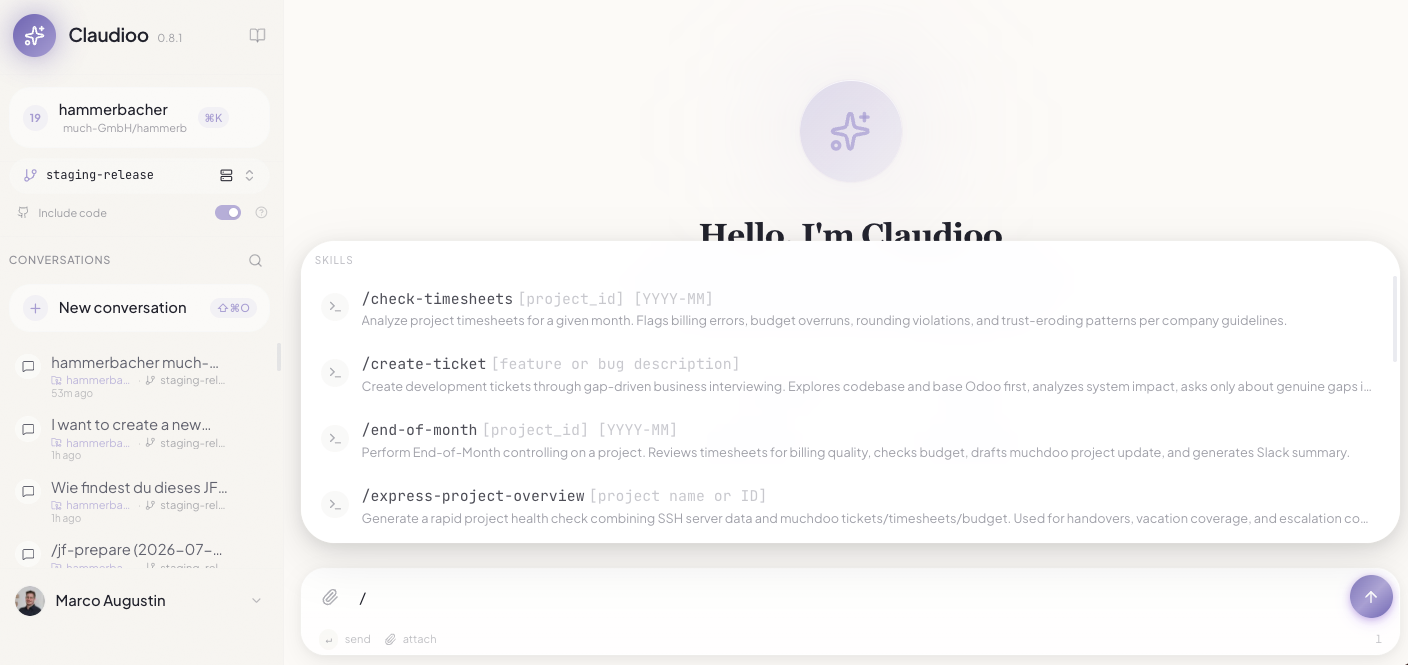
Open claudioo.muchconsulting.dev, select your project in the sidebar, and start a conversation. Type naturally or use a slash command — type / to see all available built-in skills. The more context you provide, the better the output.
Path A – Pre-Projects & Demo Preparation
Use this path when setting up a demo database for a prospect presentation, an upsell, or a feature showcase — any situation where you need a working Odoo environment without manual configuration effort.
- Find the demo preparation prompt template (see link below in further documentation)
- Fill in the required fields: customer name, requirements (bullet points are fine), a link to the staging demo database, and any deal-breaker scenarios that must be demonstrated.
- Paste the completed prompt into Claudioo and send it.
- Claudioo will create demo data (customers, products, orders), configure workflows end-to-end, and generate a presentation script telling you exactly where to click and what to say at each step.
- Always click through the entire script yourself before the demo — Claudioo occasionally marks something as done before the underlying script has fully run. Ask it to confirm if anything appears missing.
Find further documentation here

Important: Always tell the customer the demo is a mockup, not the final solution. It shows what the feature could look like — not what development will deliver. This prevents the question "why did this take ten development days when you set it up in five minutes?"
Path B – Ticket Writing
Use this path when turning a customer requirement or a bug report into a properly structured development ticket.
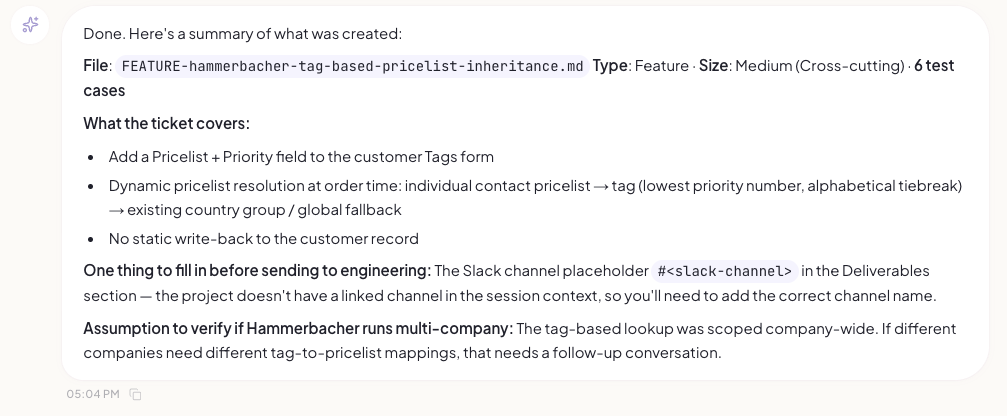
- Type /create-ticket or write: "Please create a ticket for [brief description]."
- Claudioo will explore the codebase first and then ask you clarifying questions — answer them to give it the context it needs.
- Review the generated ticket: it includes context, the business case, acceptance criteria, edge cases, test cases, and a developer onboarding section.
- Optionally ask for an estimate: "Can you also estimate this ticket?" — paste the estimation as a log note in muchdoo for the developer to verify before the sprint.
- Copy the final ticket content into the relevant muchdoo task.
Path C – Troubleshooting & Feature Implementation on Staging
Use this path when you encounter an error, unexpected behavior, or need to understand how something works before escalating to a developer.
- Describe the issue in plain language and what you expected to happen.
- Paste any error message or traceback from the Odoo interface — or let Claudioo read the server logs directly if the project is SSH-connected.
- Claudioo traces the issue through custom modules and standard Odoo, identifies where it originates, and explains why it is happening.
- Share the analysis with the developer when opening the bug ticket — it saves a full investigation round on their end.

Path D – Internal Work & Project Planning
Use slash commands to run structured workflows for recurring admin tasks. These replace what previously took 30–60 minutes with a 5-minute conversation.
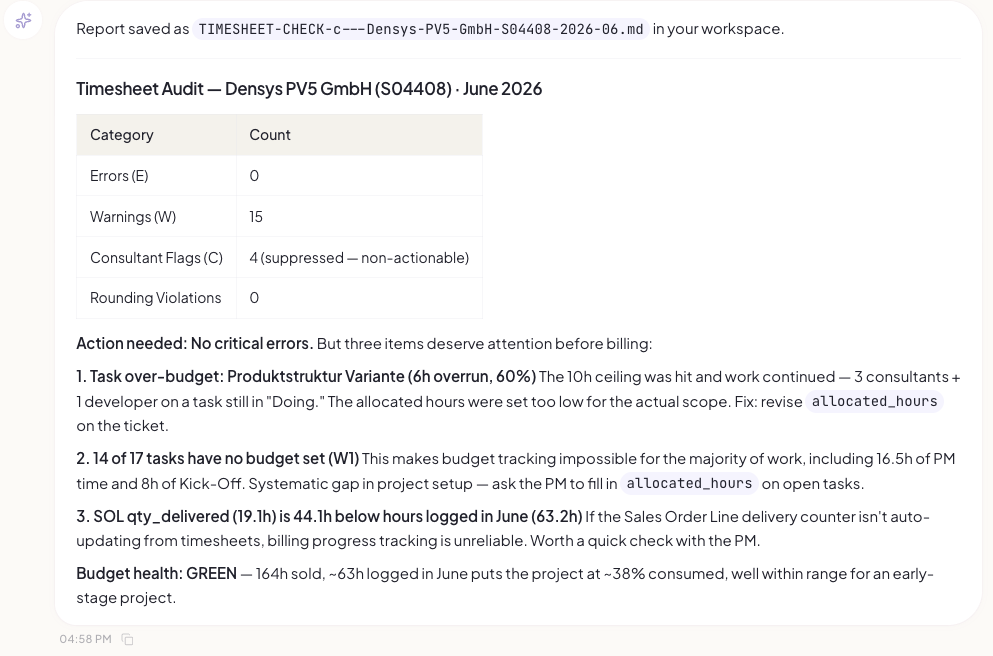
- Timesheet review: /check-timesheets [project name] — audits all entries for billing errors, rounding violations, and missing descriptions, then lists warnings with recommended fixes
- End-of-Month controlling: /end-of-month [project name] [YYYY-MM] — full EoM workflow: timesheet quality, budget health, draft status update ready to post
- Jour Fixe preparation: /jf-prepare [last JF date] — fetches recent ticket activity, timesheets, and comments; generates formatted JF meeting notes
- Meeting aftercare: /meeting-aftercare then paste the transcript — extracts action items, matches topics to tickets, flags risks, and drafts a Slack summary
- Project handover: /express-project-overview — rapid health check for vacation coverage, escalations, or onboarding onto an existing project mid-stream
Built-in Skills — Full Slash Command Reference
Type / in the Claudioo chat to see all available skills with descriptions. The most frequently used ones for consultants:
- /check-timesheets — audit timesheets for a project (billing errors, rounding, missing entries)
- /end-of-month — full EoM controlling workflow including timesheet check and status draft
- /create-ticket — guided development or bug ticket creation
- /jf-prepare — Jour Fixe meeting notes from recent project activity
- /meeting-aftercare — process a meeting transcript into actions and ticket matches
- /express-project-overview — quick project health check for handovers or escalations
- /test-list — go-live test checklist generated from all tickets and custom code
- /shub-estimate — estimate a Support Hub helpdesk ticket
📊 Odoo Studio vs. Code
Claudioo uses Odoo Studio when configuring staging demo databases — it is fast and visual. But it has important limitations every consultant must understand before showing results to a customer or leaving changes on a long-lived environment.
| Odoo Studio | Code (Custom Module) | |
|---|---|---|
| Best for | Mockups, demos, simple text fields, layout changes | All logic, automations, field references, complex behavior |
| Survives Odoo upgrade? | No — Studio changes can be lost when the version changes | Yes — maintained in version-controlled repositories |
| Debuggable? | Difficult — UI only, no code reference or traceback | Yes — full traceback and code inspection available |
| Use on production? | Simple text fields only — avoid any logic here | Yes — the correct path for all customer deliverables |
⚠️ Common Pitfalls
- Trusting results without reviewing — Claudioo makes mistakes. Always review tickets before adding them to a sprint, and always click through demo scripts before presenting. The tool occasionally marks a step as done before it has actually finished running.
- Unclear connection mode — If you are ever unsure whether Claudioo is connected with read or write access to a live instance, stop and check with your project lead before continuing. Never assume it is read-only.
- Unrealistic demo expectations — Customers who see a Claudioo-built demo may assume that look and feel is the final delivered product. Always clarify: "This is a mockup to illustrate the concept — the actual implementation will be built in code and will likely look different."
- Studio changes lost after a rebuild — Any Studio customizations Claudioo makes on staging disappear when the instance is rebuilt. This is expected for demos — just do not rebuild if you need the configuration to persist for testing.
- Too little context in prompts — Claudioo produces significantly better output with context. Three bullet points and a sentence about what you already tried produces far better results than a single vague question.
💡 Tips
- Write to Claudioo in German if you prefer — it understands and responds in any language. There is no need to always use English.
- For bug investigation: even if you are not expected to read tracebacks as a consultant, if you are already in a Claudioo conversation about the issue, paste the error and ask "where is this coming from?" — it saves the developer a full investigation round.
- For demo prep, keep prompts slightly open-ended — Claudioo sometimes proposes process improvements you would not have considered when focused on a specific requirement. Evaluate the suggestion and guide it if needed.
- There is a Claudioo leaderboard inside the tool showing team usage — it exists for motivation, not competition. No formal reward is attached.
- If something does not work after checking the documentation, post in #i-claudioo on Slack — the team is there to help with setup issues.