MCP Server 2.0 for Odoo : Product Documentation (v18/ v19 & v20)
The Model Context Protocol (MCP) lets AI assistants such as Claude, ChatGPT, Microsoft Copilot, Cursor, VS Code and Windsurf connect securely to Odoo and act on your data in natural language.
This guide walks an administrator through configuring the much. MCP Server module (v2.2) on Odoo 18 and 19 and connecting an AI assistant.
ℹ️ Info
Availabilities Odoo.sh, Odoo On Premise (not Odoo Online) Editions Community, Enterprise Odoo Versions v18, v19 (for v16 and v17, see the previous documentation) Components Odoo module mcp_server with a built-in MCP endpoint (/mcp). Nothing to install on the user's computer. The mcp-server-odoo local client is optional, for clients that only support local servers. Companion example Claude (web and Desktop). Any MCP-compatible client works the same way.
Configuration
This section sets up the module on the Odoo side and connects an AI assistant. Complete the steps in order.
Installation pre-requisites
Before you begin, make sure you have:
- Odoo 18.0 or 19.0 (Community or Enterprise, Odoo.sh or On Premise) with administrator access.
- The Python packages authlib (>=1.6.12, <1.7.0), defusedxml and packaging available on the Odoo server. They are listed in the module's requirements.txt.
- HTTPS on your Odoo instance. It is required for "Log in with Odoo" (OAuth refuses plain HTTP, except on localhost) and for cloud-hosted assistants, and strongly recommended in every case. Behind a reverse proxy, run Odoo with proxy_mode = True so it recognises the HTTPS connection.
- Cloud-hosted assistants such as Claude.ai, ChatGPT or Copilot also need the instance to be reachable from the internet.
- An MCP-compatible AI assistant. No local installation is needed unless your client only supports local (stdio) servers.
Install the MCP Server module
- Copy the mcp_server module into your Odoo addons path (or install it from the App Store).
- In Odoo, go to Apps ▸ Update Apps List.
- Remove the Apps filter from the search bar, search for MCP Server and click Install.
- Activate developer mode (Settings ▸ Activate the developer mode).
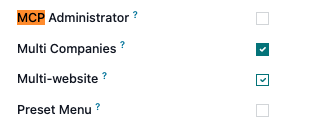
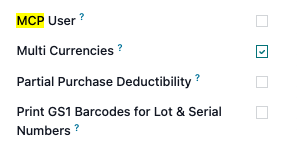
Assign the security groups under Settings ▸ Users & Companies ▸ Users:
MCP Administrator can configure MCP, manage enabled models, custom tools and OAuth clients/tokens, and read the audit log. Odoo Settings admins receive this group automatically. It includes MCP User.
MCP User is required to use MCP. Only members can connect an AI assistant, by any method. What they can do is still limited by the model permissions below and their own Odoo access rights.
Enable MCP and configure global settings
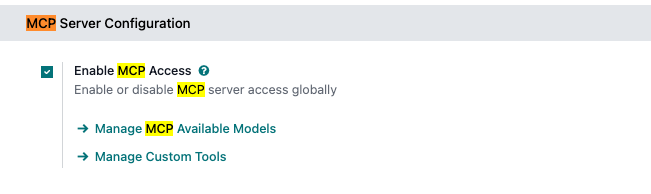
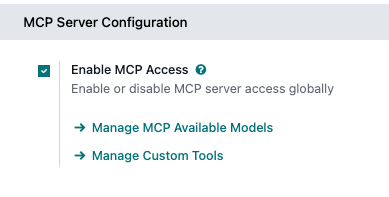
- Go to Settings ▸ General Settings ▸ MCP Server Configuration (or type "MCP" in the settings search bar).
Turn on Enable MCP Access. This is the master switch. While it is off, every MCP endpoint (/mcp, REST and XML-RPC) returns an error and no data is reachable.
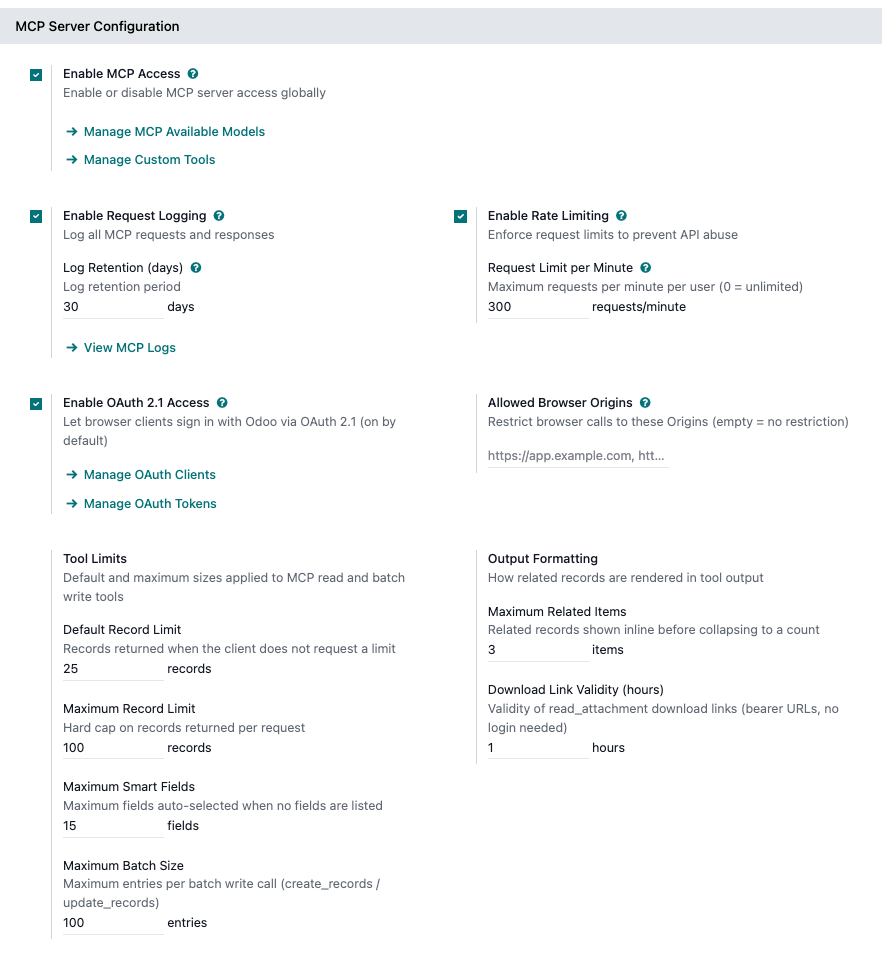
Configure the safeguards (they appear once MCP is enabled):
- Enable Request Logging (on by default) and a Log Retention (days) period (default 30; 0 = keep forever).
- Enable Rate Limiting (off by default) and a Request Limit per Minute (default 300; 0 = unlimited). The limit field appears once rate limiting is on.
- Enable OAuth 2.1 Access (on by default) lets assistants connect with a normal Odoo login. Turn it off to accept API keys only.
- Allowed Browser Origins is an optional, comma-separated allowlist of browser origins (empty = no restriction). Native clients such as Claude Desktop or Cursor are never affected.
- Tool Limits: Default Record Limit (25), Maximum Record Limit (100), Maximum Smart Fields (15) and Maximum Batch Size (100 records per bulk create/update).
- Output Formatting: Maximum Related Items (3) and Download Link Validity (hours) (1).
- Click Save. Changes apply immediately on all Odoo workers. No restart is needed.
Enable models and permissions
This is the core safety step: you decide which models AI assistants can reach, and which operations are allowed on each.
Click Manage MCP Available Models on the settings page, or go to Settings ▸ Technical ▸ MCP ▸ MCP Available Models.
Click New and fill in:
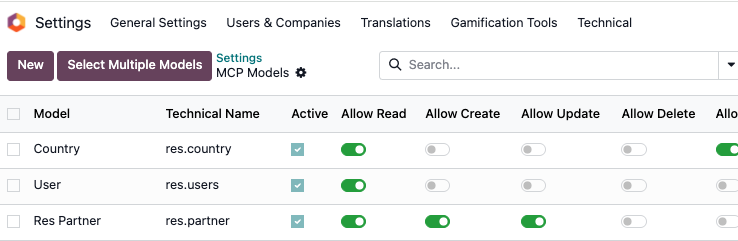
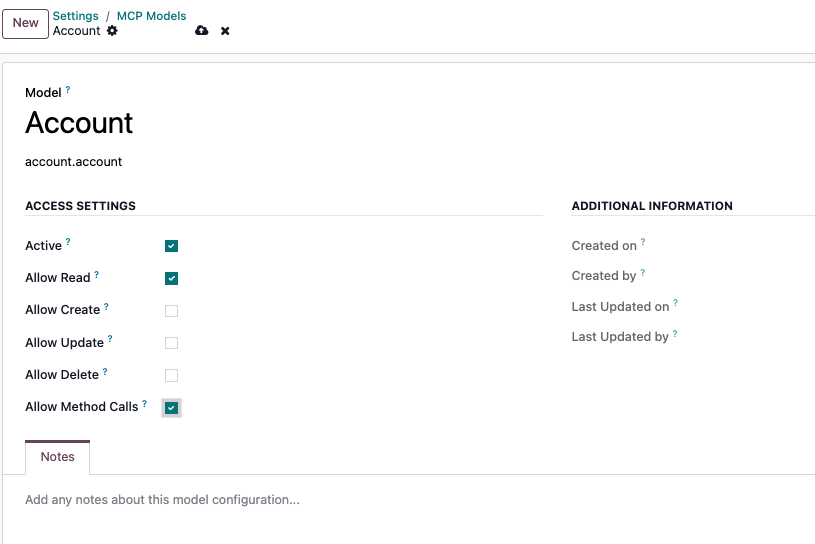
- Model: the Odoo model to expose (e.g. Contact / res.partner / Account).
- Active: whether this entry is in effect.
- Allow Read (on by default), Allow Create, Allow Update, Allow Delete. Tick only what you need.
- Allow Method Calls (off by default): lets the assistant run the model's public business actions, such as confirming a quotation (action_confirm).
- Notes: optional internal notes.
To enable several models at once, click Select Multiple Models, choose the models, set the operation toggles, and click Enable Selected Models. Already-enabled, transient and internal (ir.*, base_*) models are automatically excluded from the list.
Choose how assistants connect
The module speaks MCP natively at https://your-odoo.com/mcp. There are three ways to connect an assistant, from simplest to most involved:
| Method | Best for | What the user needs |
|---|---|---|
| Option 1: Log in with Odoo (OAuth 2.1) (recommended) | People using Claude (web, Desktop, mobile), ChatGPT, Microsoft Copilot, Perplexity, Mistral Le Chat, Gemini Enterprise, Claude Code, Cursor or VS Code | Their normal Odoo login. Nothing to install, create or copy. |
| Option 2: API key | Automations, service accounts and CI, and clients without OAuth support (e.g. LM Studio). Also works in Claude Code, Cursor, VS Code, Gemini CLI and MCP Inspector. | An Odoo API key, ideally with MCP only access. |
| Option 3: Standalone local client (uvx mcp-server-odoo) | Clients that only support local (stdio) servers, or Claude Desktop with an API key instead of an Odoo login | UV installed locally, plus an All APIs API key (or an Odoo login and password). |
Option 1 : Log in with Odoo (OAuth 2.1)
The simplest way to connect. The user gives the assistant the Odoo MCP URL and signs in with their normal Odoo login. No API key is created, copied or stored. The steps below are for Claude; other clients follow the same pattern.
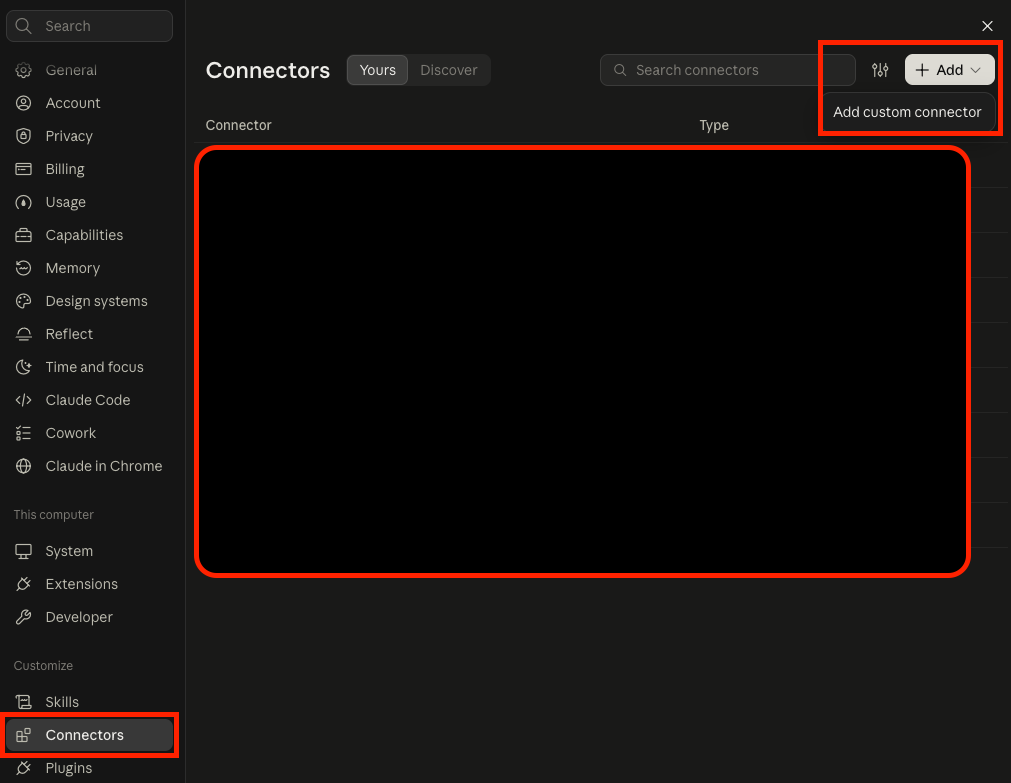
In Claude (web or Desktop), go to Settings ▸ Connectors ▸ Add custom connector.
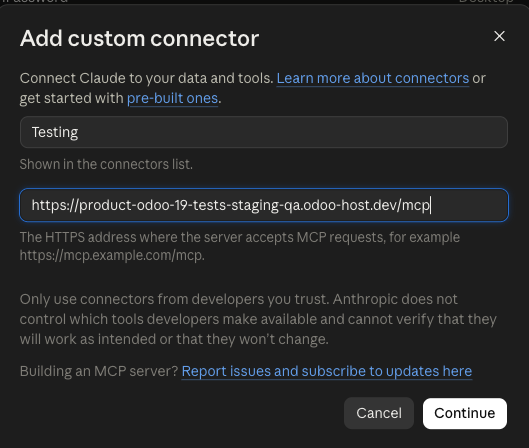
Enter a name (e.g. Odoo) and the URL https://your-odoo.com/mcp, then click Add. The MCP URL is the address you use to open Odoo, followed by /mcp. For example, if you open Odoo at https://acme.odoo.com, enter https://acme.odoo.com/mcp. Use only the base address: do not copy a page URL such as https://acme.odoo.com/odoo/contacts.
- Click Connect. Your browser opens the Odoo login page. Sign in with your usual Odoo credentials.
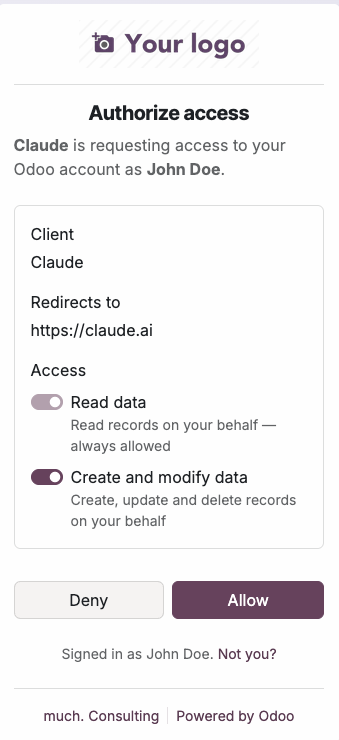
Review the Odoo consent screen and click Allow:
- Leave Create and modify data switched on to give the assistant read and write access.
- Switch it off to give the assistant read-only access. Write tools are then hidden from the assistant and refused if called.
Back in Claude, the connector shows as connected and the Odoo tools are available in the chat. A connector added on claude.ai also syncs to the Claude mobile apps.
Other clients examples:
| Client | How to add the Odoo MCP URL |
|---|---|
| Claude Code (CLI) | Run claude mcp add --transport http odoo https://your-odoo.com/mcp, then type /mcp inside Claude Code and choose Authenticate. |
| ChatGPT (web, paid plans) | Enable Developer mode in Settings ▸ Security and login. Then open chatgpt.com/plugins and click +. A new chat opens with the Plugin Creator. Replace the suggested "help me create a plugin" with a message such as: Create a developer-mode app for my remote MCP server. Name: Odoo. URL: https://your-odoo.com/mcp. Transport: streaming HTTP. Authentication: OAuth (the server supports dynamic client registration and PKCE). The Plugin Creator confirms when the app is created. In a chat, select the app from + ▸ Developer mode; connecting it opens the Odoo login. On Business/Enterprise/Edu plans a workspace admin must allow developer mode first. |
Option 2 : Connect with an API key
For clients where you prefer, or need, a static credential: headless setups, service accounts, automations, or clients without OAuth support.
Generate an API key:
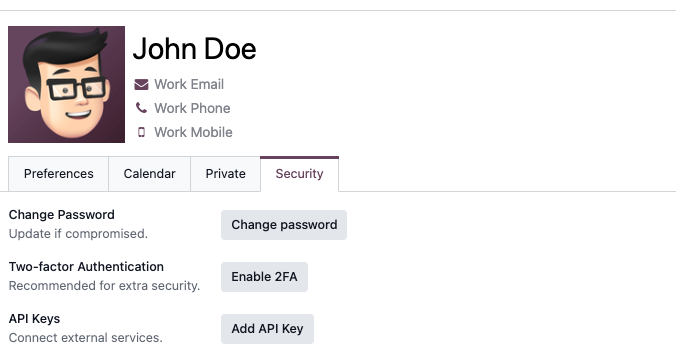
Open your user menu (avatar, top right) ▸ Preferences (v18) / My Preferences (v19). In v18 it is named My Profile when the Employees app is installed.
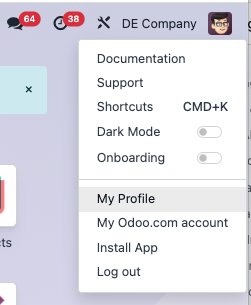
Open the Account Security (v18) / Security (v19) tab and click New API Key (v18) / Add API Key (v19).
- Confirm your password when Odoo asks for it.
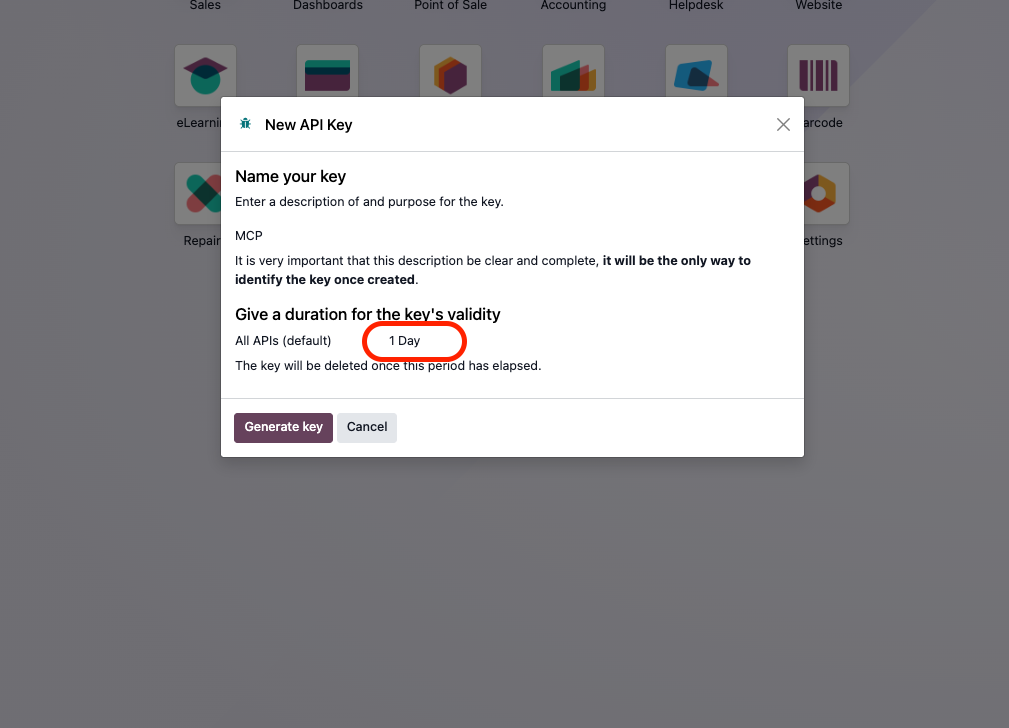
- Enter a description, set the access to MCP only (recommended; it is the drop-down showing All APIs (default), next to the duration), choose a duration and click Generate key.
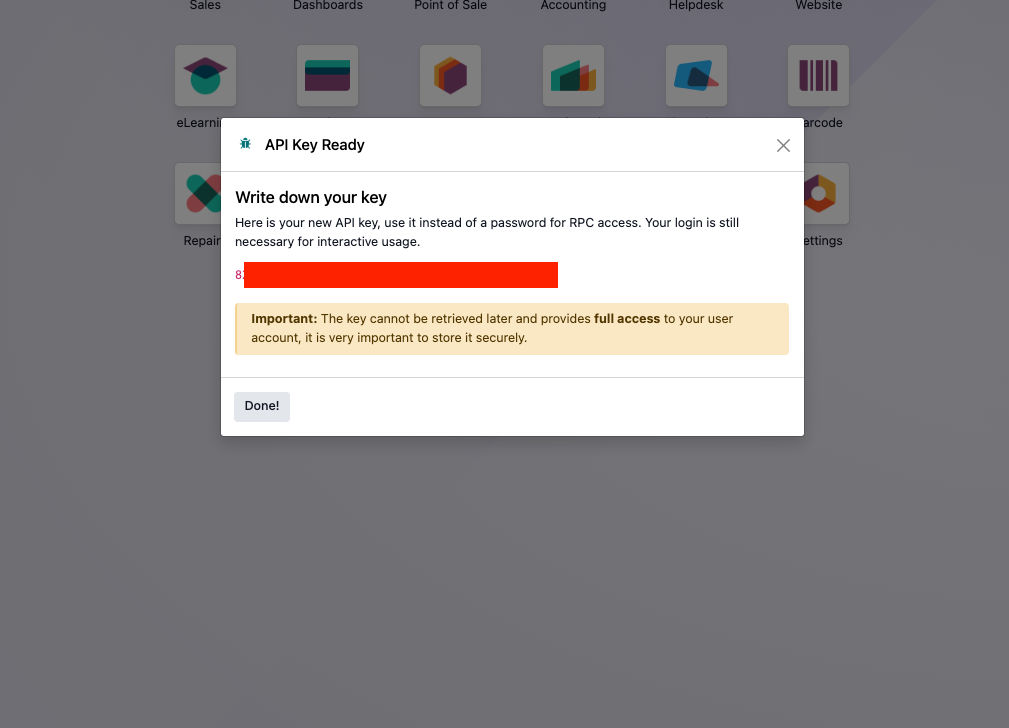
- Save the key immediately. It is shown only once. The key is deleted automatically when its duration ends.
Configure the client with the URL and an Authorization: Bearer <your-key> header:
Claude Code (CLI):
claude mcp add --transport http odoo https://your-odoo.com/mcp --header "Authorization: Bearer YOUR_API_KEY"
With an API key header, Claude Code does not fall back to the Odoo login: if the key is wrong, the connection fails.
VS Code (.vscode/mcp.json; note the top-level key is servers):
{
   "inputs":[
      {
         "type":"promptString",
         "id":"odoo-api-key",
         "description":"Odoo API key",
         "password":true
      }
   ],
   "servers":{
      "odoo":{
         "type":"http",
         "url":"https://your-odoo.com/mcp",
         "headers":{
            "Authorization":"Bearer ${input:odoo-api-key}"
         }
      }
   }
}
Cursor (requires a Cursor account): in Cursor Settings ▸ Tools & MCP, add a new MCP server with the URL https://your-odoo.com/mcp. The Odoo login opens automatically. To use an API key instead, add an Authorization: Bearer <key> header to the server.
Option 3 : Standalone local client (uvx mcp-server-odoo)
The open-source mcp-server-odoo client runs on your local computer and bridges local (stdio) MCP to the module. Use it only when your client cannot connect to a remote server. It goes through the same model permissions, logging and rate limits. It needs an All APIs key; an MCP only key is rejected. The steps below are for Claude Desktop; any MCP-compatible client is configured in a similar way.
Install UV on your local computer:
macOS:
curl -LsSf https://astral.sh/uv/install.sh | sh
Windows:
powershell -c "irm https://astral.sh/uv/install.ps1 | iex"
Find the uvx path. You will need the full path in the config:
which uvx
It usually returns something like /Users/yourusername/.local/bin/uvx.
- Restart your terminal.
- Open Claude Desktop and go to User ▸ Settings ▸ Developer.
- Click Edit Config to open claude_desktop_config.json.
Add (or merge) the odoo server into mcpServers, filling in your own values:
{
   "mcpServers":{
      "odoo":{
         "command":"YOUR_UVX_PATH",
         "args":[
            "mcp-server-odoo"
         ],
         "env":{
            "ODOO_URL":"YOUR_ODOO_URL",
            "ODOO_DB":"YOUR_ODOO_DB",
            "ODOO_USER":"YOUR_ODOO_USER_EMAIL",
            "ODOO_API_KEY":"YOUR_ODOO_API_KEY"
         }
      }
   }
}
Values to fill:
- command: the full uvx path from step 2 (e.g. /Users/yourusername/.local/bin/uvx).
- ODOO_URL: your Odoo instance URL.
- ODOO_DB: your database name (optional; auto-detected if omitted).
- ODOO_USER: your Odoo login email.
- ODOO_API_KEY: an All APIs key generated as in Option 2.
- Save the file and restart Claude Desktop.
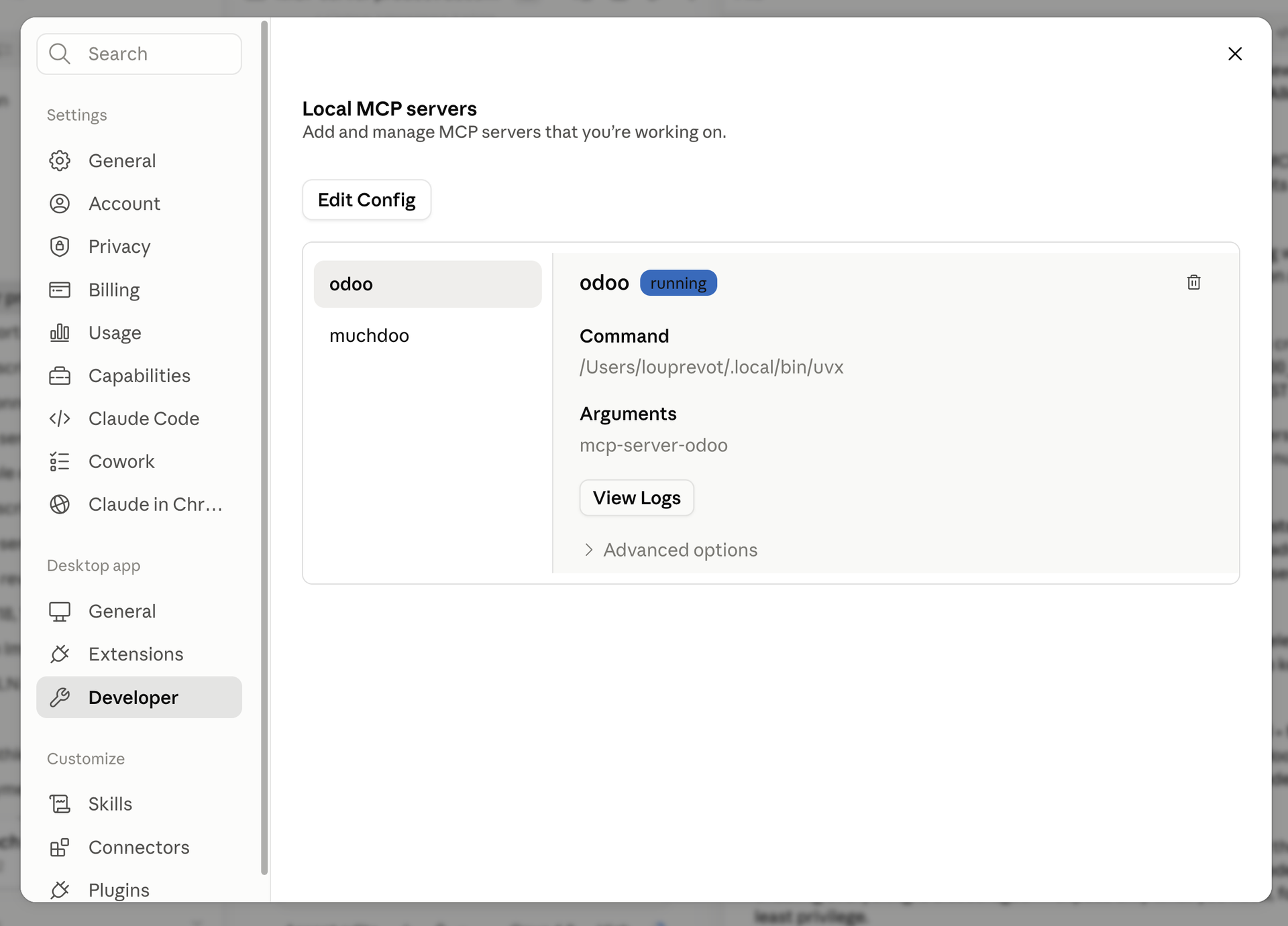
Go back to Settings ▸ Developer:
- If the status is Running, setup is successful. You can start asking Claude about your Odoo data.
- If the status is Failed, click View Logs, copy the text, and give it to Claude to help troubleshoot.
💡 Client environment variables
Variable Required Description ODOO_URL Yes Your Odoo instance URL. ODOO_API_KEY Yes* API key with All APIs access (recommended auth method). ODOO_USER Yes* Login email (with ODOO_PASSWORD, if not using a key). ODOO_PASSWORD Yes* Password (if not using a key). ODOO_DB No Database name (auto-detected if omitted). * Use either ODOO_API_KEY, or both ODOO_USER and ODOO_PASSWORD.
For remote/web clients, add "--transport", "streamable-http", "--port", "8000" to args and connect the client to http://localhost:8000/mcp/.
Verify the scheduled actions
- Go to Settings ▸ Technical ▸ Automation ▸ Scheduled Actions.
- Confirm MCP Log Cleanup exists and is active. It runs once per day and deletes log entries older than the Log Retention (days) setting (nothing is deleted if retention is 0).
- Confirm MCP: OAuth Credential Garbage Collection exists and is active. It runs once per day and removes OAuth credentials that can no longer be used: expired authorization codes, revoked-and-expired tokens, and unused client registrations.
You are now ready to query and manage your Odoo data through your AI assistant, within the permissions you configured!
Usage
In this section you will learn how to use the integration in your daily workflows.
Asking the assistant : retrieving data
Once the assistant is connected, you can ask about any model you enabled for reading. The assistant translates natural language into permitted Odoo queries (search, read, count, group). Examples:
- "Show me all leads from Spain that haven't been contacted in 30 days."
- "Which products are low in stock right now?"
- "What were our top-selling items last month?"
- "List unpaid customer invoices over €1,000."
When it connects, the assistant is told who you are, your timezone, and your active and allowed companies. It therefore uses the right company and converts dates correctly (Odoo stores all datetimes in UTC). Behind the scenes it calls read tools (search_records, get_record, aggregate_records, get_fields, list_models). Each call is checked against the model's Allow Read permission before Odoo's own access rights apply.
Asking the assistant : managing data
Where you enabled create/update/delete on a model, the assistant can also change data:
- Create: "Create a new contact for Acme GmbH with this email." (requires Allow Create)
- Update: "Set the delivery date on order S00123 to next Friday." (requires Allow Update)
- Bulk create and update: "Create these 30 contacts" or "Set these 50 tasks to Done." The assistant does it in a single step, up to the Maximum Batch Size (default 100). Each record can get its own values in the same step.
- Post a message: "Add a note to this customer that they requested a callback." (treated as an update)
- Run a business action: "Confirm quotation S00123." (requires Allow Method Calls on the model)
- Delete / archive: "Delete the test contacts I created this morning." (requires Allow Delete for deletion, Allow Update for archiving)
Working with files and attachments
The assistant can open, list and add files on the records it can see:
- Read a file: "Summarize the PDF attached to invoice INV/2026/0042." Text files are read directly, images are shown to the assistant, and PDF/Office documents are read as extracted text. Anything else comes back as a secure download link.
- List files: "Which files are attached to this project task?"
- Attach a file: "Attach this signed contract to the Acme GmbH contact." (requires Allow Update on that model; about 7 MB maximum)
Custom tools : exposing business actions safely
Instead of enabling generic create/update on a model, an administrator can give the assistant a curated action, such as confirm_sale_order, with a narrow set of inputs. A custom tool wraps an Odoo server action of type Execute Code.
Create the server action under Settings ▸ Technical ▸ Actions ▸ Server Actions ▸ New:
- Choose the model and the type Execute Code.
- Set Allowed Groups. These groups decide who may call the tool.
- In the code, read the assistant's inputs from mcp['args'] and put the answer in mcp['result']:
order = env['sale.order'].browse(mcp['args']['order_id'])
order.action_confirm()
mcp['result'] = {'order': order.name, 'state': order.state}
Go to Settings ▸ Technical ▸ MCP ▸ Custom Tools ▸ New (or click Manage Custom Tools on the settings page) and fill in:
- Name: the tool name the assistant calls (letters, digits, _ and -; unique).
- Server Action: the action created in step 1.
- Read-only: tick it if the tool does not change data. Read-only OAuth sessions can only call read-only tools.
- Description (LLM contract) (required): what the tool does, when to call it, and what each input means.
Input Schema (JSON): the inputs the assistant must send, for example:
{
   "type":"object",
   "properties":{
      "order_id":{
         "type":"integer",
         "description":"ID of the sale order to confirm"
      }
   },
   "required":[
      "order_id"
   ]
}
- Save. The tool immediately appears for the users allowed to run it.
Only Settings administrators can create custom tools (wiring a server action requires access to server actions), and only they can mark a tool Read-only, because that flag decides what read-only sessions may call.
Managing model access day to day
| Task | How to perform it |
|---|---|
| Turn MCP access on/off globally | Settings ▸ General Settings ▸ MCP Server Configuration ▸ Enable MCP Access (master switch). |
| Expose a new model | Settings ▸ Technical ▸ MCP ▸ MCP Available Models ▸ New, pick the model, set operations. |
| Expose several models at once | Select Multiple Models wizard → set operations → Enable Selected Models. |
| Change what an assistant may do to a model | Toggle Allow Read / Create / Update / Delete directly on the model's row. |
| Allow business actions (e.g. confirm an order) | Toggle Allow Method Calls on the model's row, or create a Custom Tool for a single, curated action. |
| Temporarily disable a model | Open its row and untick Active (or select it and use Actions ▸ Archive). The configuration is kept; use the Inactive filter to find it again. |
| Grant a person access | Add them to the MCP User group (user form ▸ Access Rights tab, in developer mode: under Other in v18, under Extra Rights in v19). They connect with their Odoo login (Option 1) or their own API key (Option 2). |
| Give read-only access | The user switches off Create and modify data on the consent screen, or you enable only Allow Read on the models. |
| Revoke access | Remove the user from the MCP User group (cuts off keys and OAuth sessions immediately), delete the API key, revoke the OAuth token, deactivate the OAuth client, or deactivate the model. |
| Tune abuse protection | Adjust Enable Rate Limiting and Request Limit per Minute. |
| Restrict browser access | Fill in Allowed Browser Origins. |
| Manage log storage | Adjust Log Retention (days); the daily cleanup job enforces it. |
Managing OAuth connections
Every assistant that connects with "Log in with Odoo" appears in Odoo, where an MCP Administrator can cut it off at any time.
- Settings ▸ Technical ▸ MCP ▸ OAuth Clients (or Manage OAuth Clients on the settings page) lists the applications that registered through the login flow (e.g. Claude). Deactivate a client, from its form or in bulk from the list (Actions ▸ Deactivate), to block new logins and cut off every session it already has.
- Settings ▸ Technical ▸ MCP ▸ OAuth Tokens (or Manage OAuth Tokens) lists the issued tokens (sessions) with their user, client, scope (mcp:read = read-only, mcp:write = read/write), expiry and a Revoked flag. Open a token and click Revoke to end it immediately. The user then has to log in again.
- To disable "Log in with Odoo" entirely, turn off Enable OAuth 2.1 Access in Settings ▸ General Settings ▸ MCP Server Configuration. API keys keep working.
Monitoring and Logs
The module provides comprehensive logging to monitor activity and troubleshoot issues.
- Navigate to Settings ▸ Technical ▸ MCP ▸ MCP Logs (or click View MCP Logs on the settings page). The list is read-only and defaults to today.
Use the built-in filters:
- Errors: authentication failures, errors, rate-limit hits and permission denials (the most common issues to check).
- Authentication: authentication events (in practice, failed attempts: successful requests are logged as Model Access).
- Group by Event Type, User, Auth Method or Date.
- Click a log entry to see the full detail: the tool called, how the user authenticated (API key or OAuth, with the OAuth client and scope), and, for /mcp calls, the argument names and a short summary of the result. The record values themselves are not stored.
Event types you will see:
| Event Type | When it fires |
|---|---|
| Authentication Success | Not written in v2: successful requests are logged as Model Access rows, which already carry the user, IP and auth method. |
| Authentication Failure | Invalid/missing credentials, an inactive/unknown user, or a user outside the MCP User group. |
| Model Access | A permitted tool call, read/create/write/unlink or access check runs. |
| Resource Retrieval | Reserved for resource-retrieval events. |
| Write Operation | Reserved for write-operation events. |
| Error | An endpoint or tool raised an error (carries an error code). |
| Rate Limit Exceeded | A request was blocked by rate limiting. |
| Permission Denied | Access blocked because the model or operation is not enabled. |
Reference : available tools
The /mcp endpoint offers 17 built-in tools, plus any custom tools. Each tool is checked against the model permission shown.
| Tool | Permission | What it does |
|---|---|---|
| search_records | Read | Search records with smart field selection and pagination. Also reads many known records in one call. |
| get_record | Read | Fetch one record by ID. |
| get_fields | Read | Describe a model's fields (the 60 most relevant by default, or all on request). |
| list_models | Read | List the MCP-enabled models. |
| aggregate_records | Read | Count, sum and group records. |
| read_attachment | Read | Read an attachment or a file field (text, image, extracted PDF/Office text, or a download link). |
| list_record_attachments | Read | List the files attached to a record. |
| list_resource_templates | Read | List the available odoo:// resource templates. |
| get_current_context | Read | Return the connected user, timezone and companies. |
| create_record | Create | Create a record. |
| create_records | Create | Create several records of one model in one atomic call. |
| upload_attachment | Create / Update | Upload a file, attached to a record (Update on that model) or standalone (Create on ir.attachment). |
| update_record | Update | Update a record. |
| update_records | Update | Update several records of one model in one atomic call, with shared or per-record values. |
| post_message | Update | Post a message to a record's chatter. |
| delete_record | Delete | Delete one record. |
| call_model_method | Allow Method Calls | Run a public business method (e.g. action_confirm). Methods that map to create/update/delete also need that permission. |
Reference : extended fields
mcp.enabled.model — MCP Enabled Model (user-editable)
| Field | Type | Editable | Purpose |
|---|---|---|---|
| Model (model_id) | Many2one → ir.model | Yes | The Odoo model exposed to MCP. Unique per record. |
| Technical Name (model_name) | Char (related, stored) | Read-only | Technical name (e.g. res.partner). |
| Active (active) | Boolean (default True) | Yes | Whether this entry is in effect. |
| Allow Read (allow_read) | Boolean (default True) | Yes | Permit read/search operations. |
| Allow Create (allow_create) | Boolean (default False) | Yes | Permit record creation. |
| Allow Update (allow_write) | Boolean (default False) | Yes | Permit updates, messages and attaching files. |
| Allow Delete (allow_unlink) | Boolean (default False) | Yes | Permit deletions. |
| Allow Method Calls (allow_method_calls) | Boolean (default False) | Yes | Permit public business methods through call_model_method. |
| Notes (notes) | Text | Yes | Internal notes. |
mcp.custom.tool — MCP Custom Tool (user-editable)
| Field | Type | Purpose |
|---|---|---|
| Name (name) | Char | Tool name the assistant calls. Unique; cannot reuse a built-in tool name. |
| Description (description) | Text | What the tool does and what each input means (shown to the assistant). |
| Input Schema (input_schema) | Text (JSON) | JSON Schema of the inputs. |
| Read-only (is_readonly) | Boolean (default False) | Marks the tool as not changing data; only these are callable in read-only sessions. |
| Server Action (action_id) | Many2one → ir.actions.server | The Execute Code action run when the tool is called. |
| Active (active) | Boolean (default True) | Whether the tool is offered. |
mcp.log — MCP Server Activity Log (read-only)
| Field | Type | Purpose |
|---|---|---|
| Event Type (event_type) | Selection | Category of event (see table above). |
| User (user_id) | Many2one → res.users | User associated with the event. |
| Auth Method (auth_method) | Selection | API Key, OAuth or Session. |
| OAuth Client (oauth_client_id) | Many2one → mcp.oauth.client | Application that acted, for OAuth requests. |
| Oauth Scope (oauth_scope) | Char | Granted scope (mcp:read or mcp:write). |
| API Key Used (api_key_used) | Boolean | Whether an API key was used. |
| IP Address (ip_address) | Char | Client IP (IPv4/IPv6). |
| Endpoint (endpoint) | Char | Endpoint/path called. |
| Http Method (http_method) | Char | HTTP method. |
| MCP Tool (tool_name) | Char | Tool called on /mcp. |
| Model (model_name) | Char | Target model. |
| Operation (operation) | Char | Operation or method. |
| Record IDs (record_ids) | Char | Affected record IDs (comma-separated). |
| Request Data (request_data) | Text | Request payload (truncated at 10,000 chars). |
| Response Data (response_data) | Text | Response payload (truncated at 10,000 chars). |
| Error Message (error_message) | Text | Error detail (truncated at 10,000 chars). |
| Error Code (error_code) | Char | Error code (e.g. E403). |
| Duration (ms) (duration_ms) | Integer | Processing time in milliseconds. |
| Session ID (session_id) | Char | Session identifier, when available. |
| User Agent (user_agent) | Text | Client user-agent (truncated at 10,000 chars). |
mcp.oauth.client / mcp.oauth.token — OAuth Clients and Tokens (read-only)
| Model | Main fields | Purpose |
|---|---|---|
| OAuth Client | Name, Redirect URIs, Grant Types, Scope, Created Via, Active | An application registered through the login flow. Deactivate it (after a confirmation) to block new logins and cut off all its sessions. |
| OAuth Token | User, Client, Scope, Audience, Access Token Expiry, Refresh Token Expiry, Revoked | An issued session. Tokens are stored only as hashes. Revoke it (after a confirmation) to end the session immediately. |
API key wizard — New API Key (extended)
| Field | Values | Purpose |
|---|---|---|
| Access (scope_mode) | All APIs (default) / MCP only | MCP only keys work on /mcp only and cannot be used for general RPC. |
Reference : configuration parameters
Each MCP setting on the Settings page is stored as an Odoo system parameter (ir.config_parameter).
| Settings Field | System Parameter | Default | Notes |
|---|---|---|---|
| Enable MCP Access | mcp_server.enabled | False | Master switch; applies immediately on all workers. |
| Enable OAuth 2.1 Access | mcp_server.enable_oauth | True | Off = API keys only. |
| Enable Request Logging | mcp_server.enable_logging | True | Controls whether mcp.log entries are written. |
| Log Retention (days) | mcp_server.log_retention_days | 30 | 0 = keep forever; enforced by the cleanup cron. |
| Enable Rate Limiting | mcp_server.enable_rate_limiting | False | Controls whether the request limit is enforced. |
| Request Limit per Minute | mcp_server.request_limit | 300 | Per user. 0 = unlimited; non-zero floored at 10. |
| Allowed Browser Origins | mcp_server.allowed_origins | (empty) | Comma-separated; empty = no restriction. |
| Default Record Limit | mcp_server.default_limit | 25 | Records returned when the assistant sets no limit. |
| Maximum Record Limit | mcp_server.max_limit | 100 | Hard cap on records per request. |
| Maximum Smart Fields | mcp_server.max_smart_fields | 15 | Fields picked automatically when the assistant lists none. |
| Maximum Batch Size | mcp_server.max_batch_size | 100 | Records per bulk create/update call. |
| Maximum Related Items | mcp_server.max_related_items | 3 | Related records listed by name before collapsing to a count; 0 = always collapse. |
| Download Link Validity (hours) | mcp_server.link_ttl_hours | 1 | Capped at 1008 (42 days); 0 or less falls back to 1. |
Reference : method and data mapping
On the native /mcp endpoint, each tool is checked against the permission listed in Reference : available tools. On the legacy /mcp/xmlrpc/object endpoint (used by the standalone local client), each XML-RPC method is mapped to one of four operations and checked against the model's permissions. Methods not listed here are denied by default, and any method beginning with _ (private) is always denied.
➡️ XML-RPC method → MCP operation
| Operation (permission) | Mapped methods |
|---|---|
| Read (allow_read) | read, search, search_read, search_count, name_search, fields_get, export_data, default_get, name_get, get_metadata, get_formview_id, get_formview_action, read_group, formatted_read_group |
| Create (allow_create) | create, copy, name_create |
| Update (allow_write) | write, toggle_active, action_archive, action_unarchive, message_post |
| Delete (allow_unlink) | unlink, action_delete |
➡️ API endpoints
Native MCP (Streamable HTTP, JSON-RPC 2.0, MCP protocol 2025-11-25 / 2025-06-18):
| Endpoint | Method | Auth | Description |
|---|---|---|---|
| /mcp | POST | Authorization: Bearer (API key or OAuth token) | The MCP server used by AI assistants. |
| /mcp/rpc | POST | Same as /mcp | Legacy alias of /mcp. |
OAuth 2.1 (public, used automatically by assistants during "Log in with Odoo"):
| Endpoint | Method | Description |
|---|---|---|
| /.well-known/oauth-protected-resource | GET | Tells the assistant where to log in for /mcp. |
| /.well-known/oauth-authorization-server | GET | OAuth server metadata. |
| /mcp/oauth/register | POST | The assistant registers itself as an OAuth client. |
| /mcp/oauth/authorize | GET/POST | Odoo login and consent screen. |
| /mcp/oauth/token | POST | Issues and refreshes access tokens. |
REST (JSON; X-API-Key header with an All APIs key, or a logged-in Odoo session; health needs neither):
| Endpoint | Method | Auth | Description |
|---|---|---|---|
| /mcp/health | GET | None | Server status + MCP version. 503 if globally disabled. |
| /mcp/system/info | GET | API key / session | DB name, Odoo version, language, timezone, enabled-model count, MCP version. |
| /mcp/auth/validate | GET | API key / session | Confirms validity; returns user ID and auth method. |
| /mcp/models | GET | API key / session | Lists MCP-enabled models. |
| /mcp/models/<model>/access | GET | API key / session | Whether a model is enabled and its allowed operations. 404 if unknown, 403 if not enabled. |
XML-RPC (used by the standalone local client):
| Endpoint | Description |
|---|---|
| /mcp/xmlrpc/common | Authentication services. |
| /mcp/xmlrpc/db | Database services. |
| /mcp/xmlrpc/object | Model operations, guarded by MCP access control (only execute_kw). |
Reference : response and error codes
REST responses use a consistent envelope: {"success", "data"/"error", "meta"} with an ISO timestamp. Errors carry an HTTP status and an internal code, which is also stored in the MCP Logs. On /mcp, errors inside a tool call (permission denied, invalid value, duplicate record…) are returned to the assistant as a readable message so it can correct itself.
| HTTP | Code | Meaning |
|---|---|---|
| 400 | E400 | Bad request (invalid model name, unknown tool argument, unsupported XML-RPC method). |
| 401 | E401 | Authentication required or failed. On /mcp, the response tells the assistant how to log in. |
| 403 | E403 | Forbidden: model/operation not enabled, user not in the MCP User group, or browser origin not allowed. |
| 404 | E404 | Model not found, or "No database is selected" on a multi-database server. |
| 405 | — | GET on /mcp (the endpoint only accepts POST). |
| 413 | — | Request body over 10 MB on /mcp (e.g. a very large file upload). |
| 429 | E429 | Rate limit exceeded. |
| 500 | E500 | Internal server error. |
| 503 | E503 | MCP is globally disabled (health and REST endpoints; /mcp answers with the error "MCP server is disabled globally"). |
Dependencies
| Dependency | Type | Required By |
|---|---|---|
| base | Odoo module | Core framework, users, groups, ir.model, API keys. |
| base_setup | Odoo module | Settings integration (the MCP configuration block). |
| Odoo module | Messaging/chatter infrastructure and related model methods. | |
| web | Odoo module | Login and consent pages, and file download links. |
| rpc | Odoo module (v19 only) | XML-RPC dispatch reused by the MCP object endpoint. In v18 this is part of base. |
| authlib | Python package (>=1.6.12, <1.7.0) | OAuth 2.1 authorization server ("Log in with Odoo"). |
| defusedxml | Python package | Hardening XML-RPC parsing against XML attacks. |
| packaging | Python package | Lets Odoo check the authlib version pin. |
| attachment_indexation | Odoo module (optional) | Lets the assistant read the text of PDF and Office files. |
| mcp-server-odoo | External client (optional) | Standalone local client for stdio-only assistants (installed via uvx). |
| UV (uvx) | External tool (optional) | Runs the standalone local client on the user's machine. |
FAQ
Do I need to install anything on my computer? No. Since v2 the module speaks MCP natively: assistants connect directly to https://your-odoo.com/mcp. Only the standalone local client (Option 3) needs UV and mcp-server-odoo on your computer, and only clients that cannot connect to a remote server need it.
Which connection method should I choose? For people, use Log in with Odoo (Option 1): nothing to copy, short-lived sessions, revocable per app. It also works in Claude Code, Cursor and VS Code. Use an MCP only API key (Option 2) for automations, service accounts and clients without OAuth support. Use the local client (Option 3) only for stdio-only assistants.
Claude.ai (or ChatGPT) cannot connect to my Odoo. Cloud assistants call Odoo from the vendor's servers, so your instance must be reachable on public HTTPS. If a firewall protects Odoo, allowlist the vendor's addresses (Claude: 160.79.104.0/21). Behind a reverse proxy, run Odoo with proxy_mode = True and make sure the proxy sends the X-Forwarded-Host and X-Forwarded-Proto headers, so login redirects use your public address.
"Log in with Odoo" fails or keeps asking me to log in again. Check that Enable MCP Access and Enable OAuth 2.1 Access are both on, and that the user is active and in the MCP User group. Then check whether the token was revoked or the client deactivated under Settings ▸ Technical ▸ MCP. If a refresh token is reused, the whole session is revoked as a safety measure; simply log in again. Behind a reverse proxy, Odoo must run with proxy_mode = True: the login refuses plain HTTP, and without proxy mode Odoo does not see that the connection is HTTPS.
I get 403 although my API key is valid. Most often the user is not in the MCP User group; the refusal is recorded in the MCP Logs as an Authentication Failure with the user. Also note that an MCP only key is rejected on the REST and XML-RPC endpoints, by design: it works on /mcp only.
Every /mcp URL returns 404 ("No database is selected" in v19, "Not Found" in v18). Your Odoo server hosts several databases and cannot tell which one the request targets. Map each database to its own hostname with dbfilter (the only option that works for browser logins), or pin a single database with db_name. v19 only: API-key clients can also send an X-Odoo-Database: <db> header. Single-database servers are not affected.
In Claude Desktop the status is "Failed" (local client). Open Settings ▸ Developer ▸ View Logs, copy the text, and give it to Claude for troubleshooting. The most common causes are a wrong uvx path (use the full path from which uvx), an incorrect ODOO_URL, or an invalid or MCP only API key.
Nothing works even though I enabled a model. Check the master switch first: Settings ▸ General Settings ▸ MCP Server Configuration ▸ Enable MCP Access must be on. While it's off, the assistant gets the error "MCP server is disabled globally" on every call, and /mcp/health and the REST endpoints return 503 / E503, regardless of per-model settings.
An action failed with "Access denied" / 403. Either the model isn't in MCP Available Models, the specific operation isn't ticked, the method isn't allowed, or the session is read-only. Check the model's row and the matching Permission Denied entry in MCP Logs for the exact model and operation.
Read works but the assistant can't create or update. By design, new models are enabled read only. Open the model's row and tick Allow Create / Allow Update / Allow Delete as needed. If you connected with "Log in with Odoo" and switched off Create and modify data on the consent screen, the session is read-only: disconnect and reconnect with it switched on.
Can an assistant do more than the Odoo user is allowed to? No. MCP only narrows access. Every call, including custom tools, runs as the authenticated user and passes through Odoo's access rights and record rules.
Are private/internal methods reachable? No. Any method starting with _ is always denied. With Allow Method Calls only public business methods are allowed; generic ORM methods and the web_* family are always blocked.
Can the assistant read PDFs and images? Yes. Images are shown to the assistant directly. For PDF and Office documents, install Odoo's standard attachment_indexation module; without it, the assistant gets a download link instead.
Is rate limiting exact? It's a safeguard, not a precise quota. Counters live in each worker process's memory, so the effective ceiling scales with the number of workers. Leave a comfortable margin above expected usage. A bulk create/update call counts as one request.
I can't see the MCP menus. The MCP menus (Settings ▸ Technical ▸ MCP) are visible only to MCP Administrators, and only in developer mode. The MCP settings block is on the Settings page, which only Settings admins can open (they are MCP Administrators automatically).