much. AI Providers : Product Documentation
much. AI Providers lets Odoo’s AI features run on your own AI provider account instead of Odoo’s paid AI credits. Agents and the AI chat, AI fields, AI server actions, automations, Knowledge sources, image generation and transcription call the provider you choose, directly from your Odoo server.
This guide walks an administrator through configuring the module, from connecting a first provider to choosing which model answers each AI feature. It then explains how to use it day to day: models per agent and per automation, keeping model lists up to date, and what to do when a model is about to be retired.
ℹ️ Info
| Availabilities | Odoo.sh, Odoo On Premise |
| Odoo Versions | v20 (Enterprise) |
| Components | Odoo module much_ai_providers + an account with an AI provider |
| Supported providers | OpenAI, Azure OpenAI, Anthropic Claude (Anthropic API, AWS Bedrock, Google Vertex AI), Google Gemini, Google Vertex AI, AWS Bedrock, OpenAI-compatible servers (Ollama, vLLM, OpenRouter) |
Configuration
This section sets up the module and connects a first AI provider. Complete the steps in order.
Installation pre-requisites
Before you begin, make sure you have:
- Odoo 20 Enterprise (Odoo.sh or On Premise) with administrator access, and the AI app available.
- An account with at least one supported AI provider, and its API key or credentials (for Vertex AI, a Google service account key file or Google credentials on the server; for AWS Bedrock, an AWS access key or AWS credentials on the server).
The Python libraries the module uses on the Odoo server: anthropic, boto3, google-auth and markdown2.
- Odoo.sh: add them to the requirements.txt file of your project’s repository.
- On Premise: install them with pip install anthropic boto3 google-auth markdown2.
A missing anthropic, boto3 or google-auth only disables the provider types that need it. OpenAI, Azure OpenAI, OpenAI compatible and Gemini need none of them. Without markdown2, AI replies show raw Markdown instead of bold text and lists.
- Outbound internet access from the Odoo server to the provider’s API.
Install the AI Providers module
Make the module available to your Odoo:
- Odoo.sh: click Deploy on Odoo.sh on the module’s Apps Store page, or add the module to your project’s Git repository.
- On Premise: download the module from the Odoo Apps Store, extract the much_ai_providers folder into your Odoo modules folder, and restart Odoo.
- In Odoo, activate the developer mode, then go to Apps ▸ Update Apps List.
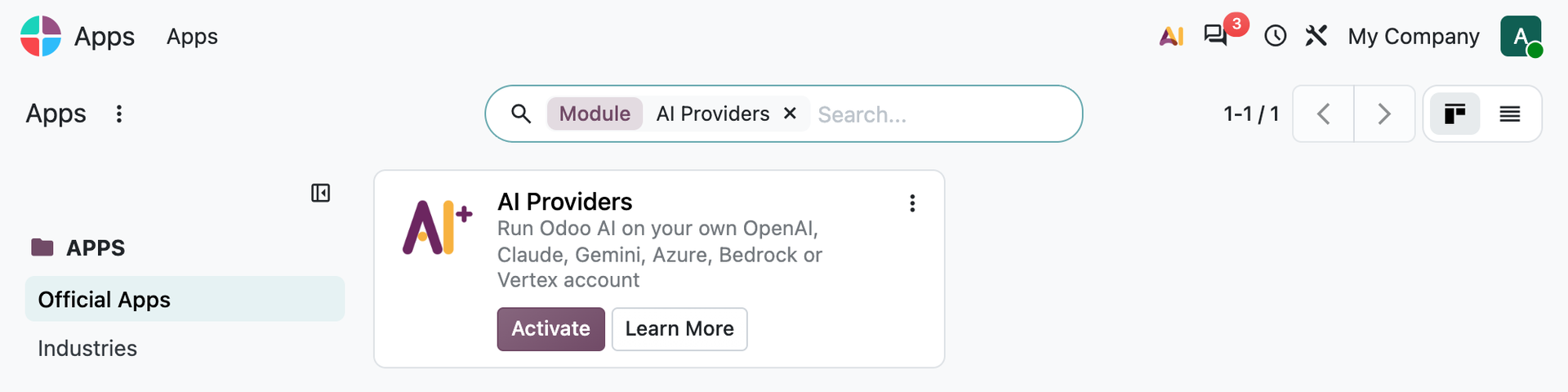
- Remove the Apps filter in the search bar, search for AI Providers and click Activate. Odoo also installs its AI app if it is not installed yet.
Create a provider
A provider is one connection to an AI service: an OpenAI account, an Azure resource, a Google Cloud project, and so on. You can create as many as you need. The Odoo AI provider is already there: it stands for Odoo’s own AI service and cannot be deleted.
- Go to Settings ▸ AI Providers, or to Settings ▸ General Settings ▸ AI Providers and click Manage providers.

- Click New and give the provider a name, e.g. OpenAI, Claude or Local Ollama.
- Choose the Provider Type. The form shows the fields that type needs.
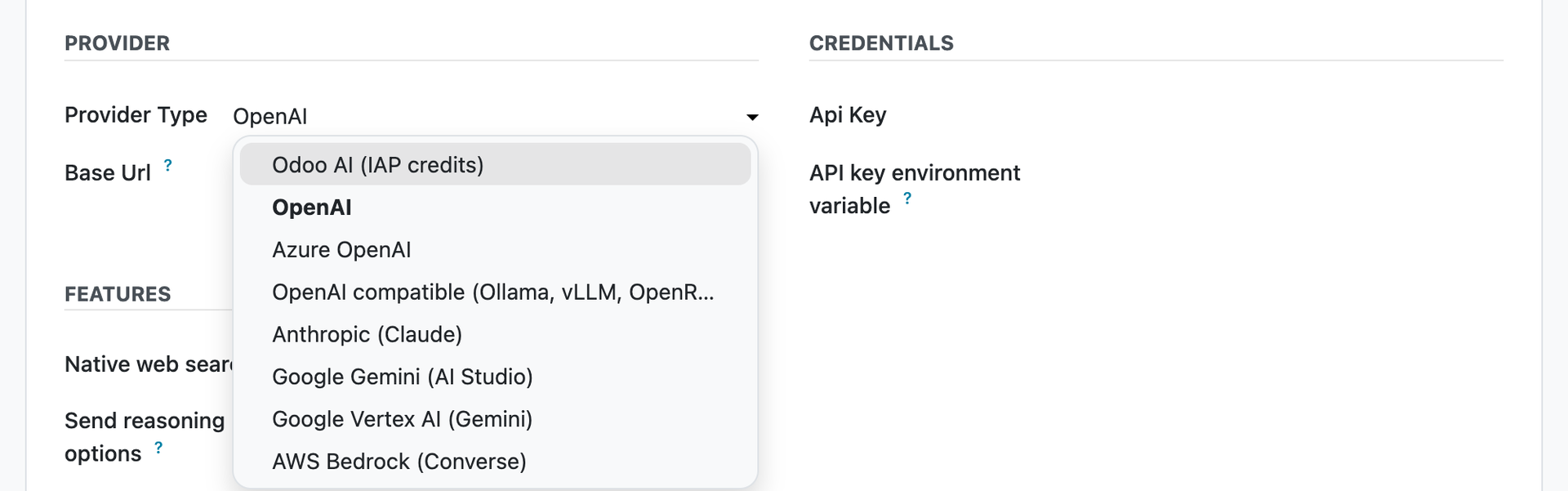
Fill in the fields for that type (see the table below), then click Save.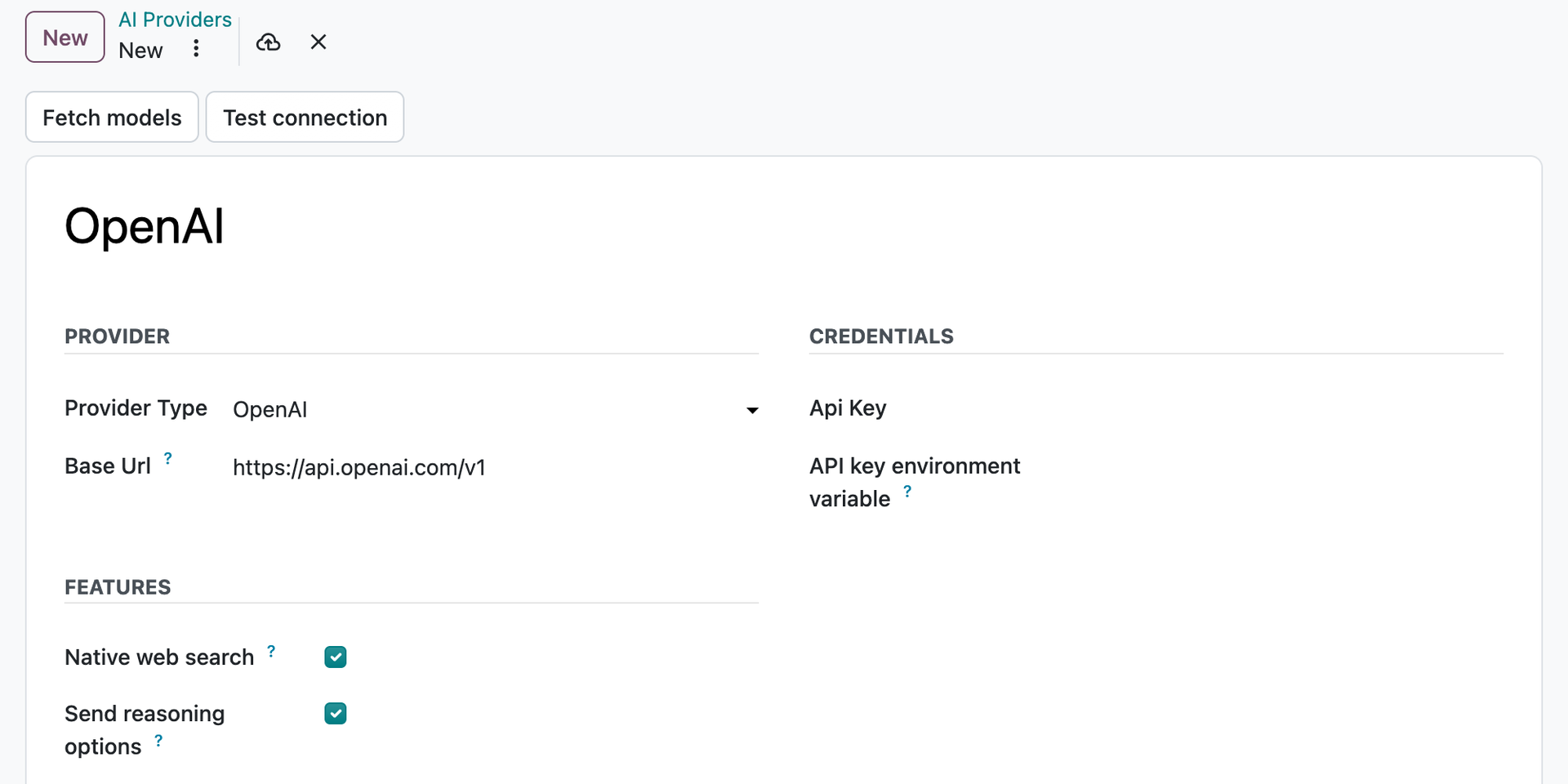
| Provider type | What to fill in |
|---|---|
| OpenAI | Api Key. Base Url is filled in with https://api.openai.com/v1; change it only for a regional root such as https://eu.api.openai.com/v1. |
| Azure OpenAI | Endpoint of your Azure OpenAI resource (https://<resource>.openai.azure.com) and its Api Key, both from the Azure portal. |
| OpenAI compatible (Ollama, vLLM, OpenRouter, ...) | Base Url of the server, e.g. http://<server>:11434/v1 for Ollama. Api Key only if the server asks for one. |
| Anthropic (Claude) | Choose the Platform: Anthropic API needs an Api Key. AWS Bedrock and Google Vertex AI take the same fields as the AWS Bedrock and Google Vertex AI rows below. |
| Google Gemini (AI Studio) | Api Key from Google AI Studio. Leave Base Url empty. |
| Google Vertex AI (Gemini) | Region (a Google Cloud location, or global) and Project. Upload a Google service account key, or leave it empty to use the Google credentials of the Odoo server. |
| AWS Bedrock (Converse) | Region, e.g. eu-central-1. Fill in Aws Access Key and Aws Secret Access Key, or leave them empty to use the AWS credentials of the Odoo server. |
Add the models
- Open the provider and click Fetch models. Odoo loads the provider’s model list into the Models tab and shows which models were added.

- Each line in the Models tab is one model, with its Model ID and its Capability: Chat and tools, Embeddings, Image generation or Transcription.
- Only models with Enabled switched on are offered in Settings and on agents. Switch off the models you do not want people to use.
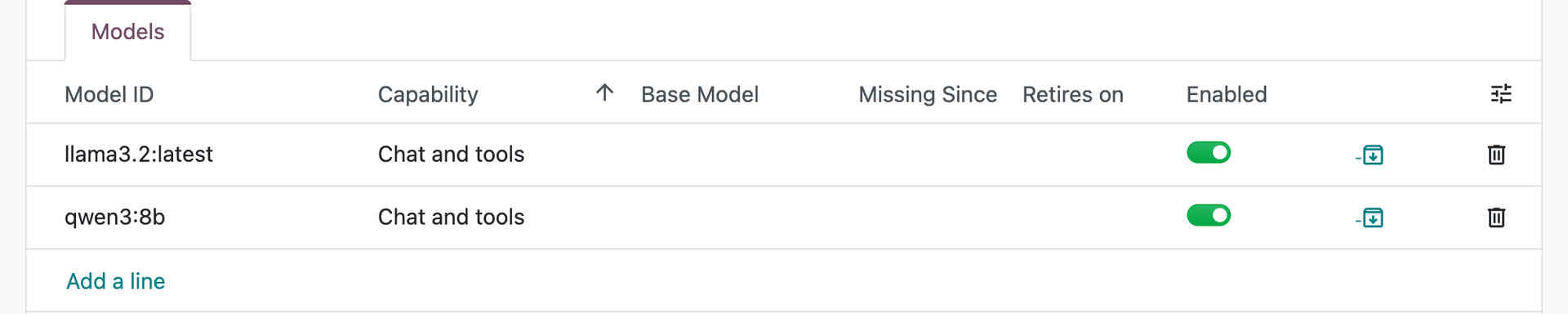
- Azure OpenAI, Google Vertex AI and Claude on AWS Bedrock or Google Vertex AI publish no model list, so you add their models by hand. Click Add a line, then enter the Model ID and choose its Capability.
- On Azure OpenAI, the Model ID is the name of your deployment. If that name is not the model’s own name, enter the model in Base Model, e.g. deployment prod-embed with base model text-embedding-3-large.
Test the connection
- Click Test connection. Odoo sends a short message to an enabled chat model of the provider and shows the answer.

- If the test fails, the message says why, for example a wrong key or a server that cannot be reached. The test needs at least one enabled chat model.
Choose the default models
The default models decide which model answers each AI feature. After installation, every default is set to Odoo AI (IAP credits), so nothing changes until you choose another model.
- Go to Settings ▸ General Settings ▸ AI Providers.
- Under Default models, choose a model for each feature, then click Save. The lists show the enabled models.
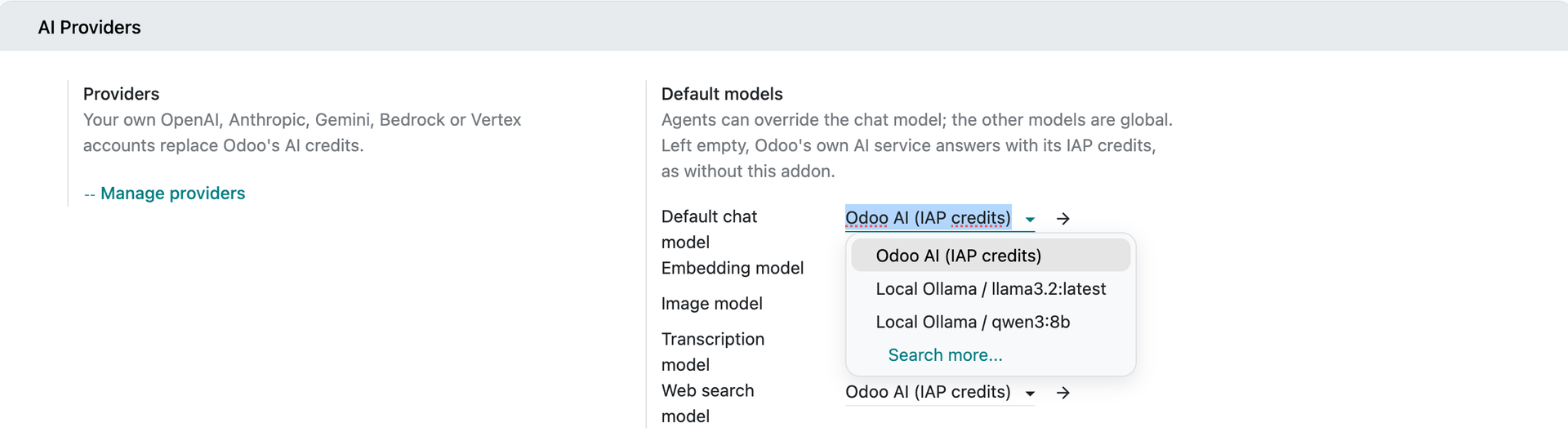
| Setting | What it answers |
|---|---|
| Default chat model | Agents and AI server actions without a model of their own, AI fields and automations. |
| Embedding model | The Knowledge and agent sources the agents search. |
| Image model | The agents’ image generation. |
| Transcription model | Dictation and call transcription. |
| Web search model | The agents’ web searches. On OpenAI, only search models such as gpt-5-search-api can search. |
You can move one feature at a time. To go back, choose Odoo AI (IAP credits) again.
Check the agent callbacks
Agent replies are computed in the background and posted back to your Odoo server.
- Under Agent callbacks, click Test callback URL. If Odoo shows that the address is reachable, nothing else is needed.
- If the test fails, the Odoo server cannot reach the address replies are sent to (by default, your Odoo’s web address). Enter an address the server can reach in Callback base URL, e.g. http://127.0.0.1:8069 when Odoo runs on port 8069 of the same server, click Save and test again.
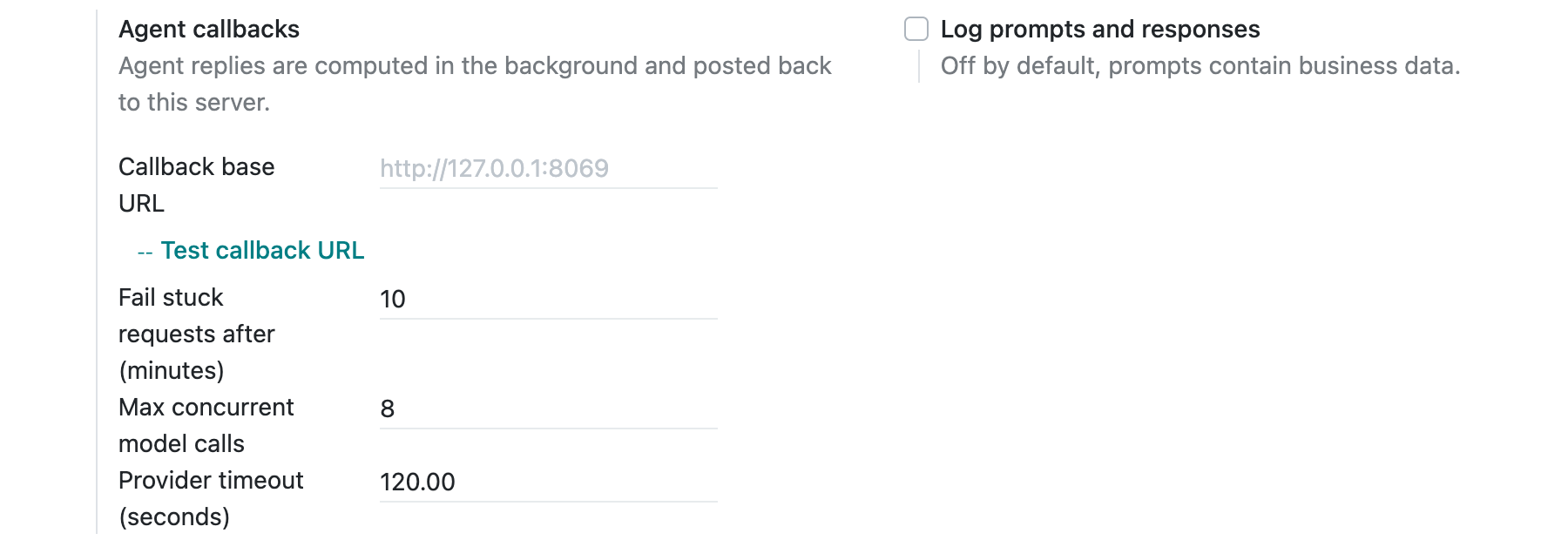
| Field | Default | Meaning |
|---|---|---|
| Fail stuck requests after (minutes) | 10 | An agent reply that has not come back after this time is marked as failed. |
| Max concurrent model calls | 8 | How many agent replies one Odoo server process computes at the same time. |
| Provider timeout (seconds) | 120 | How long Odoo waits for one answer from the provider. |
| Log prompts and responses | Off | Writes the requests sent to the provider to the server log. Keep it off: they contain business data. |
Day-to-day use
A model per agent
Go to AI ▸ Agents and open the agent. Choose its Model at the top of the agent panel. Left empty, the agent uses the default chat model from Settings. The Ask AI chat, from the AI button at the top of the screen, uses the Odoo AI agent: a model set on that agent changes only that chat.

A model per automation
On a server action of type AI, or an Update Record action set to Update with AI, choose the AI model. Left empty, the action uses the default chat model. When the action runs through the automation’s agent, the agent’s model applies instead.
Model lists stay up to date
Every night, Odoo fetches the model list of each provider that publishes one. New models are added. Models that Fetch added and the provider no longer lists are archived, except models in use, which are kept. Models you added by hand are left as they are. A model in use cannot be archived, disabled or deleted by hand.
When a model needs attention
If a model in use is no longer listed, is archived or disabled, or retires within 30 days, the provider gets an AI models need attention activity. It goes to the administrator who created the provider, or to the Administrator. It lists each model and where it is used. Choose another model in those places: the activity is marked done at the next sync.
FAQ
Why does web search fail on my OpenAI provider?
OpenAI only searches with its search models. Choose one, such as gpt-5-search-api, as the Web search model in Settings.
Why are Native web search and Send reasoning options off on my Ollama provider?
They start off for OpenAI compatible servers, because most of these servers do not support them. Switch them on only if your server does.
What happens in a copy of the database?
When the database is neutralized, for example for a test copy, all keys are removed and every provider except Odoo AI is archived. The copy never uses the production AI accounts.